
WordPress hosting
Affordable WordPress Hosting for Less Than $3/Month with Database and Redis
Get managed WordPress hosting with a database, Redis caching, SSL, backups, email, SSH, Git, cron jobs, and one-click installs for less than $3/month.
Published 2026-07-30 · 9 min read
You do not need an expensive WordPress package to launch a blog, portfolio, business site, or small store. HostRight gives you a conventional WordPress installation, NVMe-backed storage, a hosting control panel, daily backups, SSL, Redis caching, databases, email, SSH, Git, cron jobs, and a one-click installer from $2.99/month.
Choose your plan, connect a domain, install WordPress, and start publishing. WordPress Manager then keeps the important hosting tasks in the same place, including updates, users, and database settings.
HostRight also includes Softaculous as an alternate WordPress installer. WordPress Manager is the better fit when you want HostRight-specific WordPress management. Softaculous is useful when you want a searchable application catalog and the same guided installer used for Joomla, Nextcloud and other PHP applications.
Why HostRight is a good WordPress starting point
The Starter plan is designed for one site:
| Plan | Price | Sites | Databases | Email addresses | Storage |
|---|---|---|---|---|---|
| Starter | $2.99/month | 1 | 1 | 5 | 1 GB |
| Growth | $8.99/month | 5 | 5 | 10 | 5 GB |
| Business | $15.99/month | 10 | 10 | 15 | 10 GB |
Every shared hosting plan includes up to 1 CPU core and 2 GB RAM, plus:
- Daily backups and SSL
- PHP, Python, and Node.js support
- MariaDB databases
- Redis
- SSH, Git, and cron jobs
- DNS and email management
- PHP version control
- One-click applications, including WordPress
These are shared resources, not dedicated CPU and RAM. They are a practical capacity limit for normal websites, while the plan keeps its pricing simple and visible.
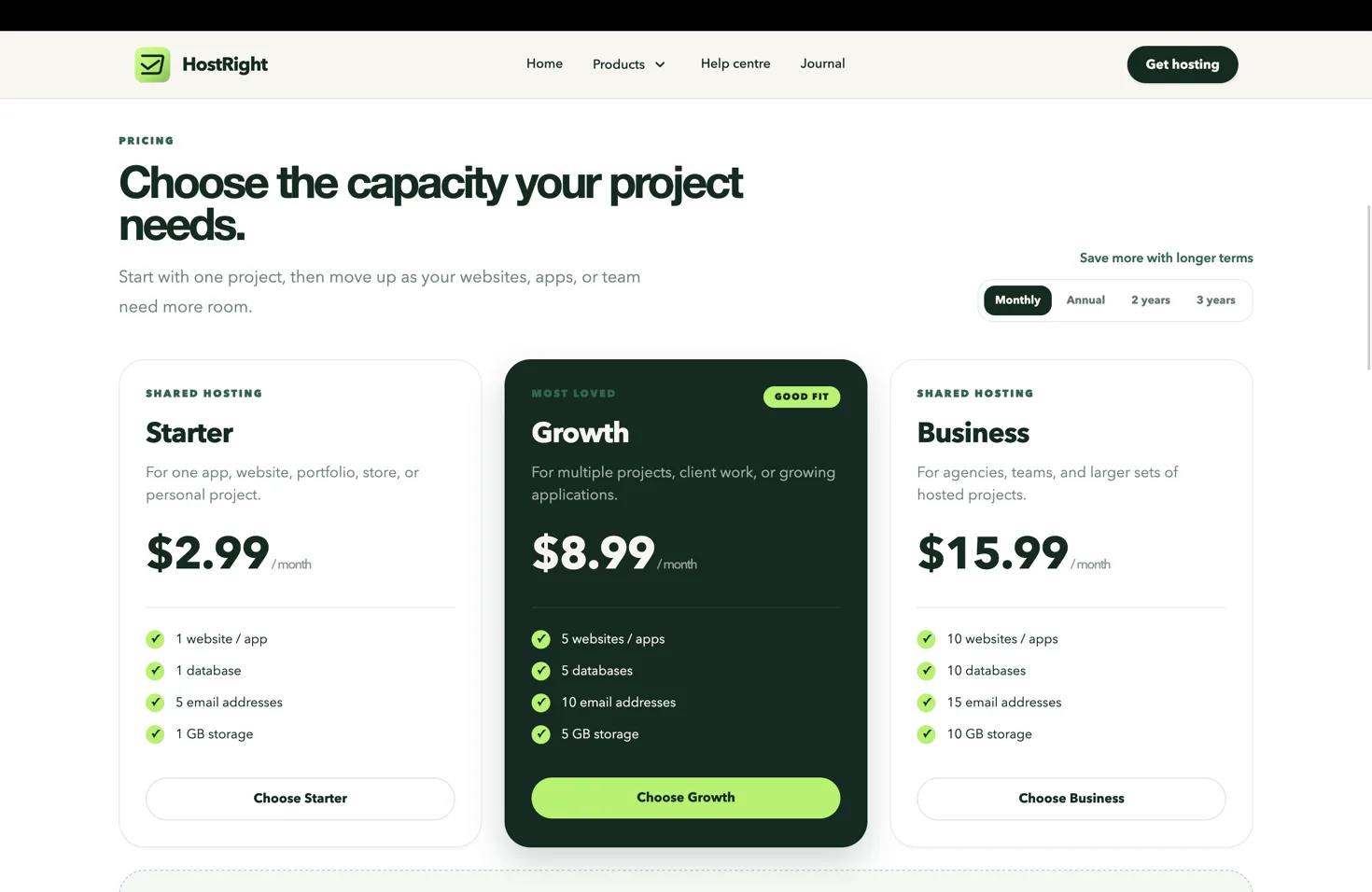
Starter works well for one blog, portfolio, local business site, or small company website. Choose Growth when you need staging, client sites, or several projects. Choose Business for a larger collection of sites and more local storage.
Monthly and longer-term pricing
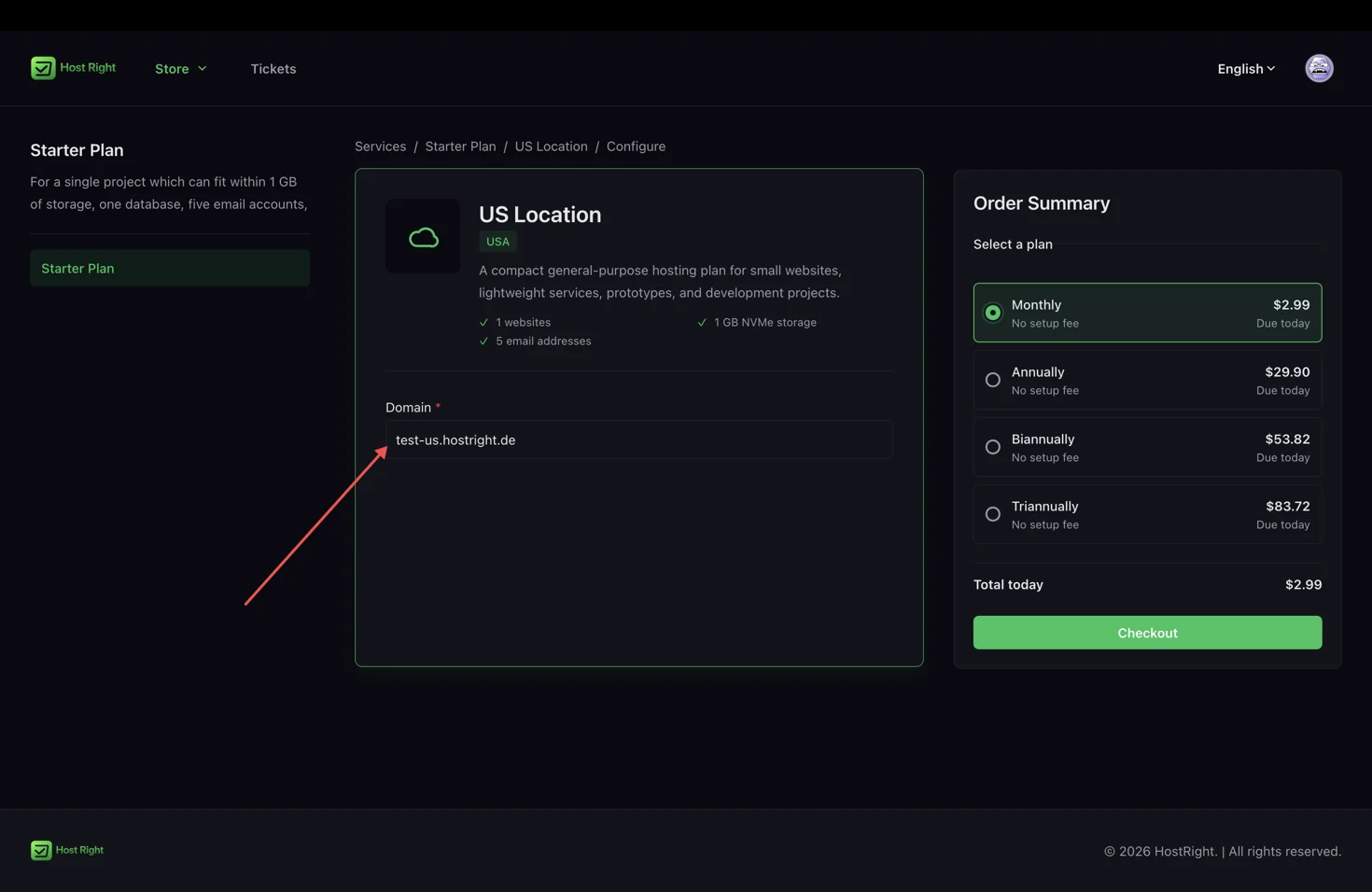
HostRight supports true monthly billing, along with discounted annual, two-year, and three-year terms. The three-year option is especially inexpensive because you pay for 28 months and receive 8 months free. The figures below use Starter as an example:
| Term | Amount charged | Billing | Effective monthly cost |
|---|---|---|---|
| Monthly | $2.99 | Every month | $2.99 |
| Annual | $29.90 | Every year | $2.49 |
| 2 years | $53.82 | Every 2 years | $2.24 |
| 3 years | $83.72 | Every 3 years | $2.33 |
The three-year amount is not a monthly charge. It is the total paid for the full term, with the monthly equivalent shown only to make plans easier to compare. The same discount structure applies to Growth and Business. Review the final checkout total and renewal terms before ordering.
Start with a plan, then install WordPress
You can create your account and buy hosting in a few steps. The important work begins after the service is active, so the registration flow is intentionally short here.
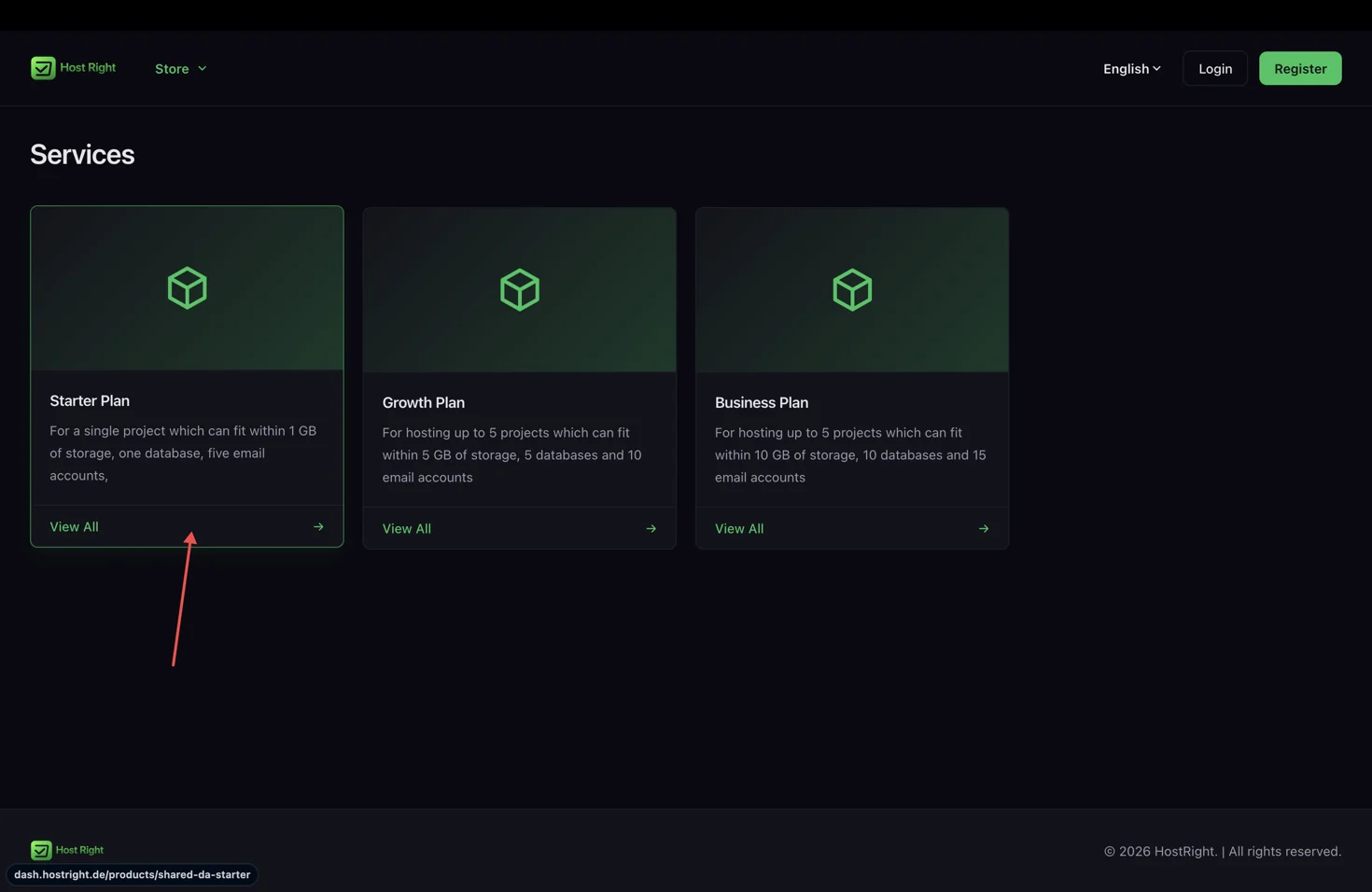
Open the HostRight dashboard, create an account, and open the store. Choose the plan based on your number of sites and the amount of storage you need.
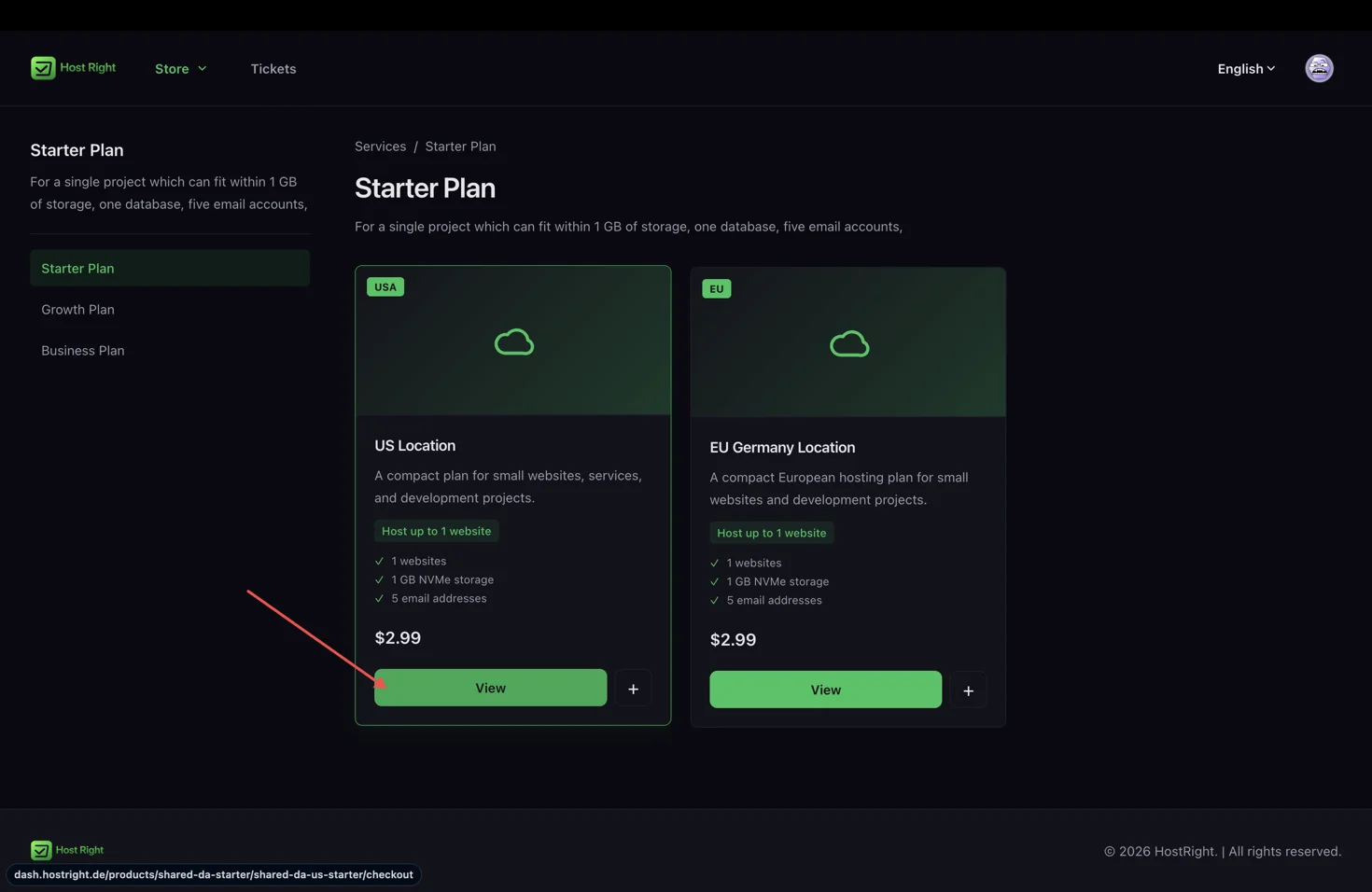
Choose a hosting location close to most of your visitors.
Enter your domain without https:// or a path, review the billing term and renewal price, then complete checkout.
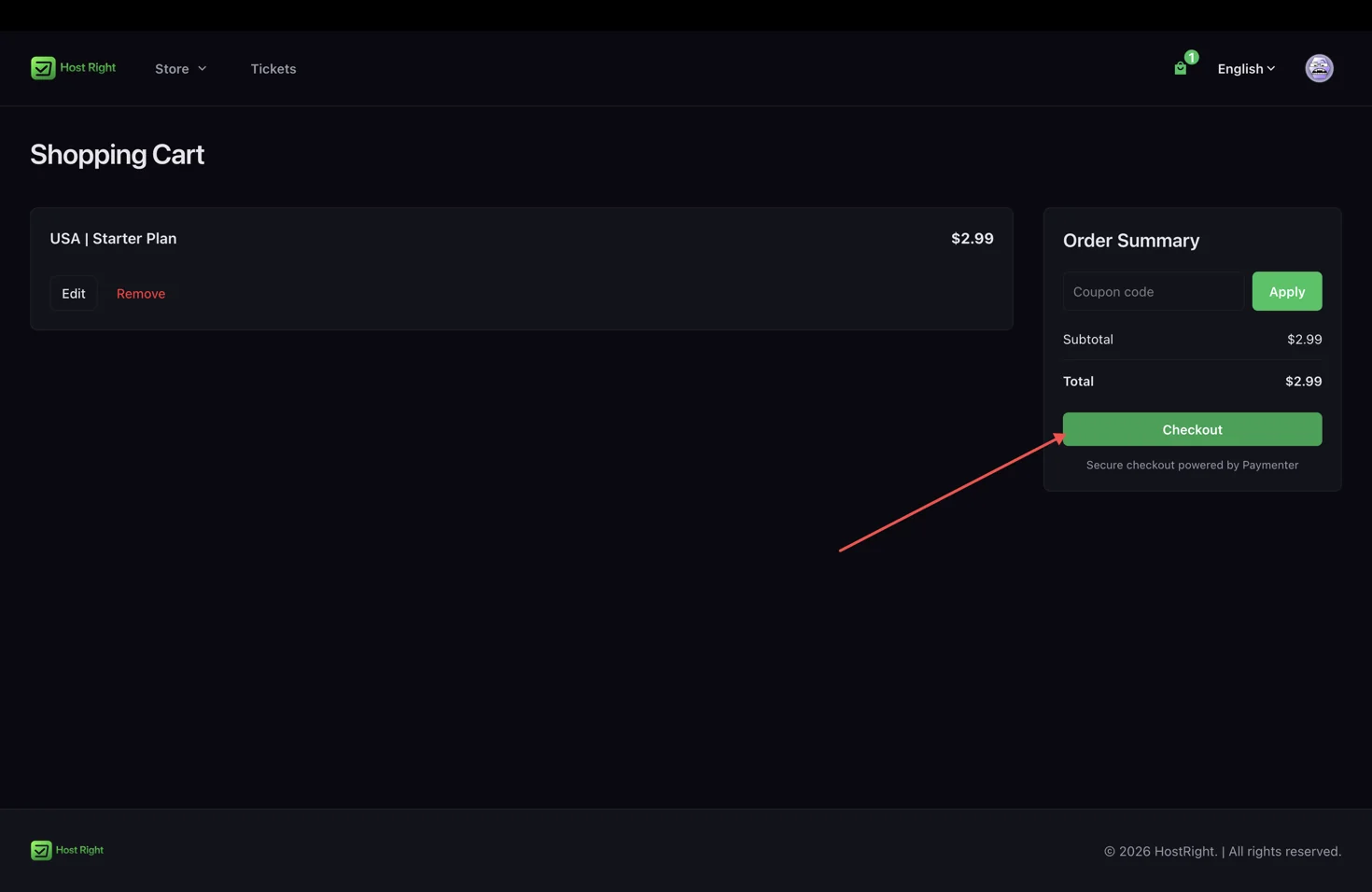
Once your hosting service is active, follow the steps below.
Install WordPress in one click
1. Open WordPress Manager
Sign in to the HostRight Control Panel. Expand Advanced Features and select WordPress Manager.
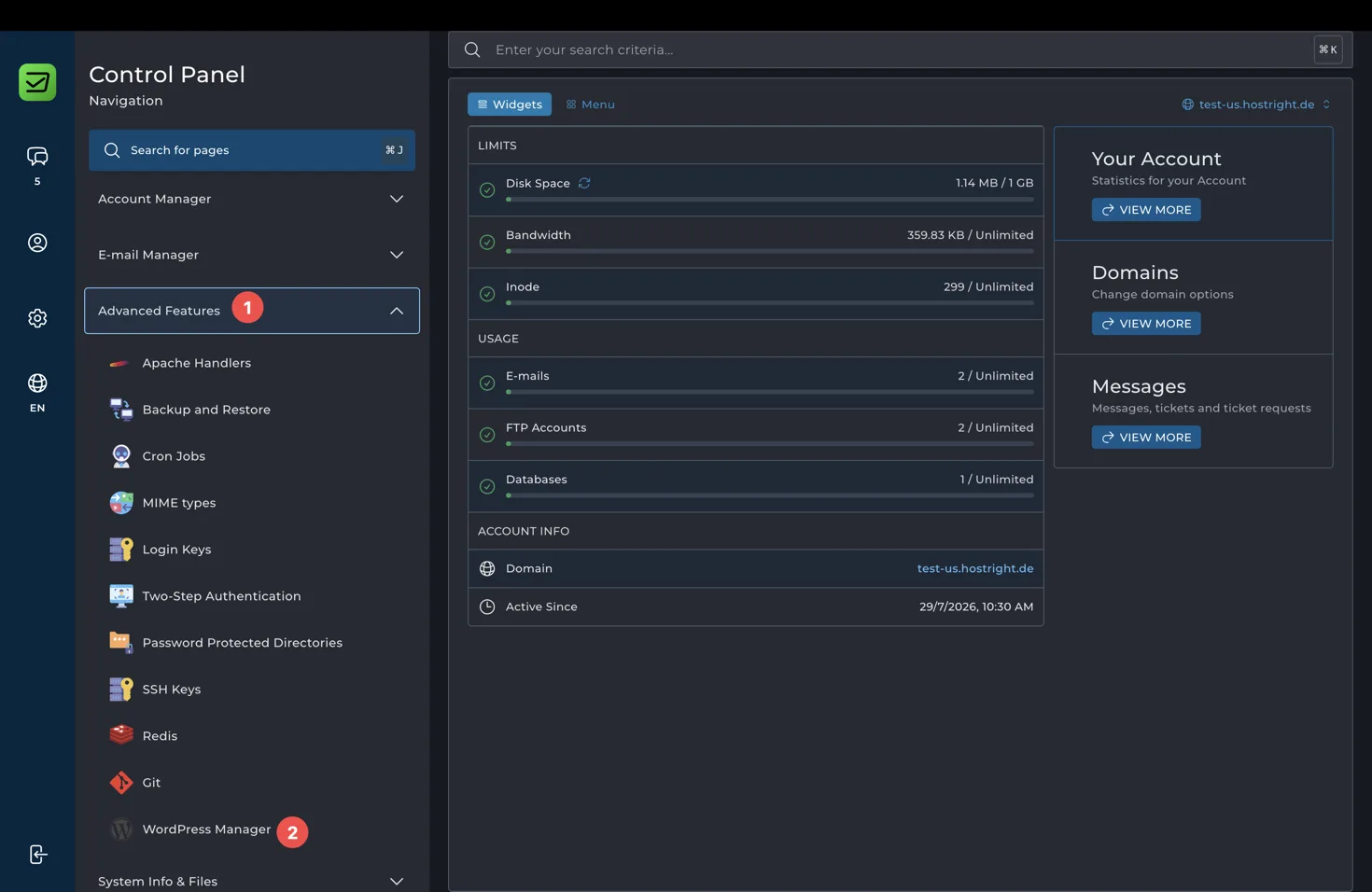
2. Select your domain
Under Locations without WordPress, find the domain where you want to install WordPress and select Install.
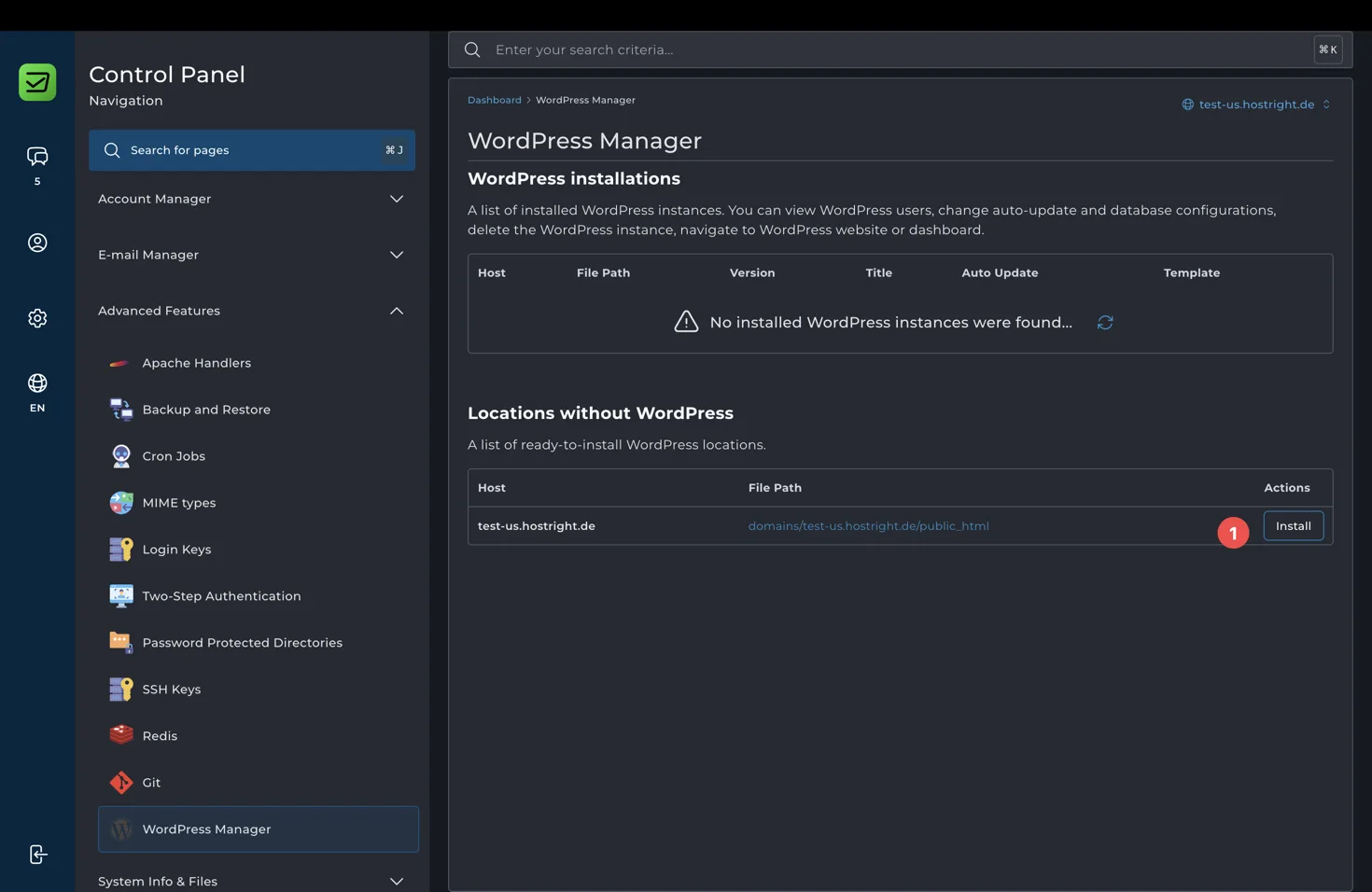
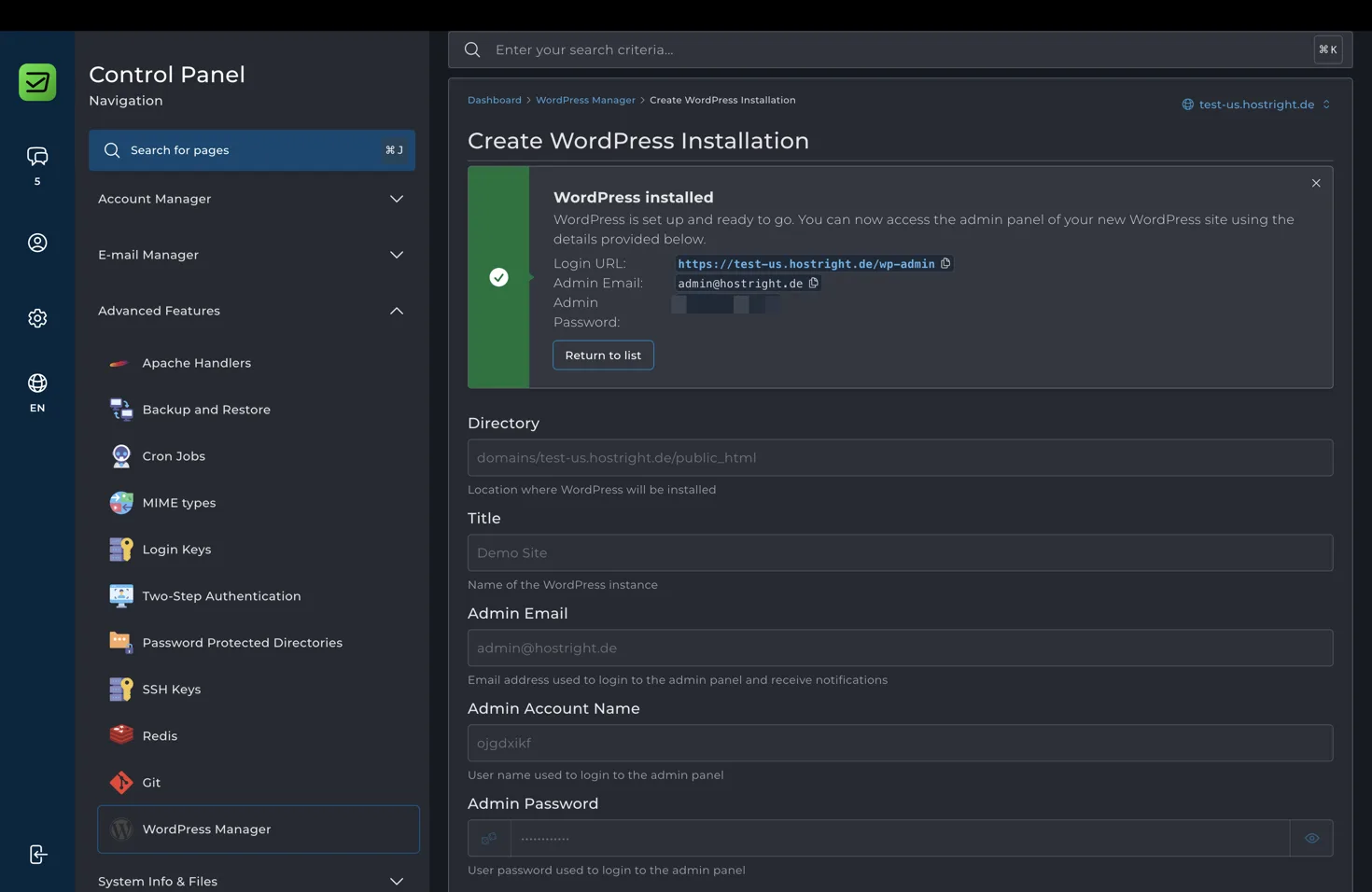
3. Enter the site details
Complete the form with:
- Directory: Keep the default document-root directory if WordPress should open at the main domain.
- Title: Enter the name of your website.
- Admin Email: Use an address for login and WordPress notifications.
- Admin Account Name: Choose the administrator username.
- Admin Password: Create a strong password or use the generator.
Keep Create new selected under Database unless you already have a database prepared for this site. Open Advanced mode only when you need custom database or installation settings. Select Create when the form is ready.
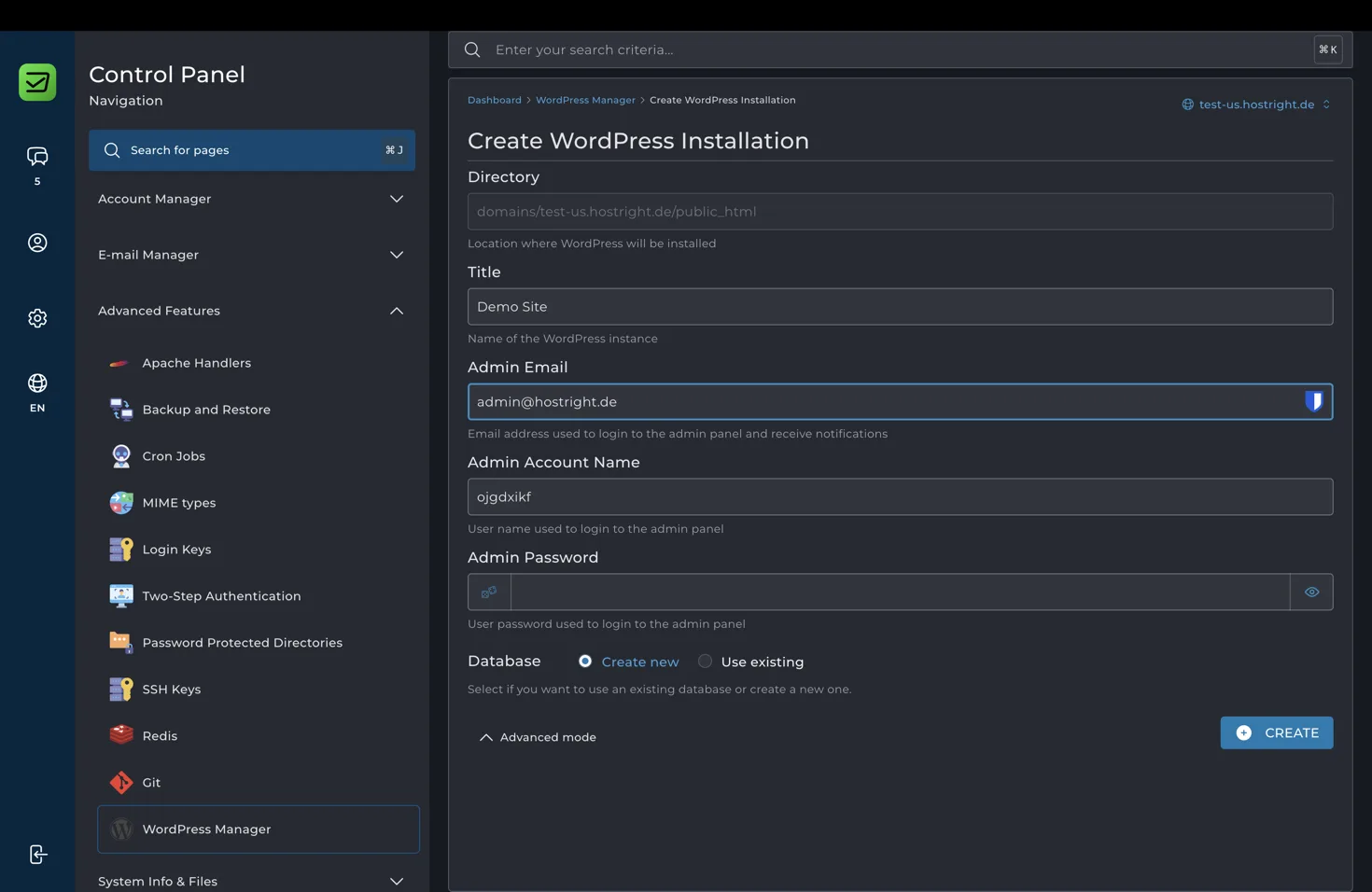
4. Save the WordPress login details
When installation completes, WordPress Manager shows the login URL, email, account name, and password details. Save them in a password manager before leaving the page.
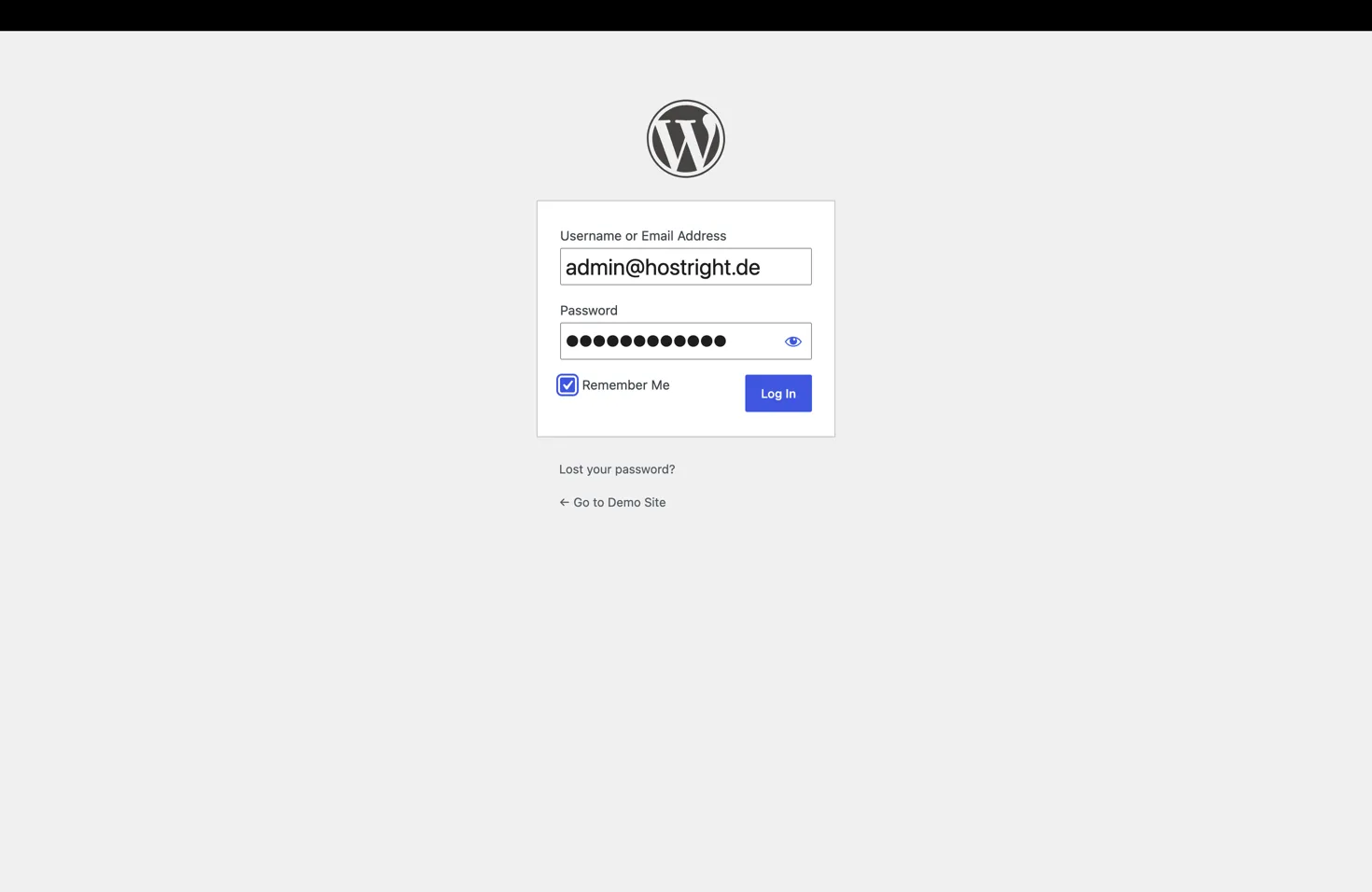
5. Sign in and start building
Open the displayed login URL, usually your domain followed by /wp-admin. Enter the administrator email or username and password, then select Log In.
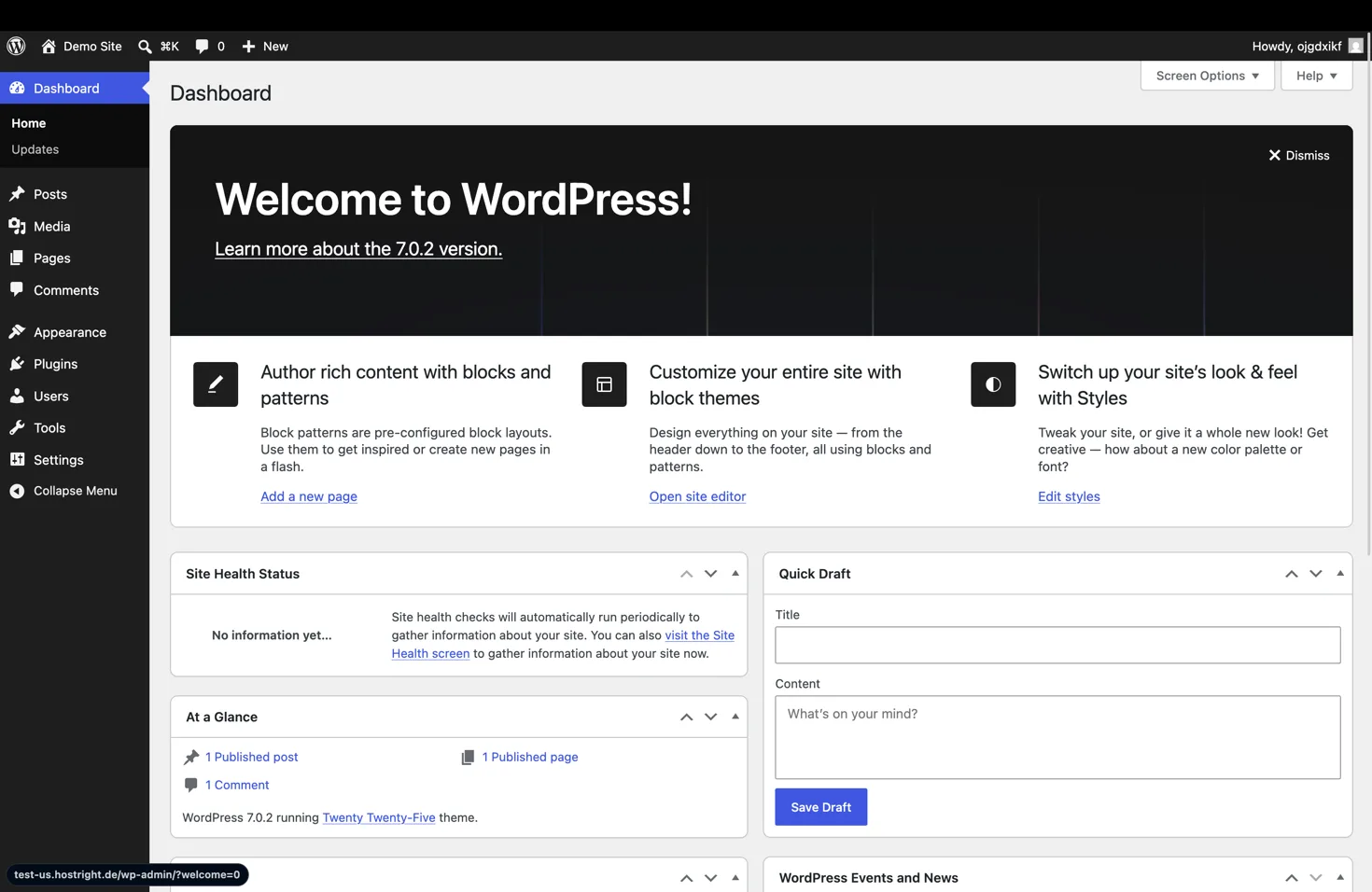
The WordPress dashboard is ready for pages, posts, themes, plugins, menus, and site settings.
Manage WordPress from the control panel
You can manage the installation directly from WordPress Manager without searching through files or opening database tools manually. Return to Advanced Features → WordPress Manager, then select the … actions menu for the site.
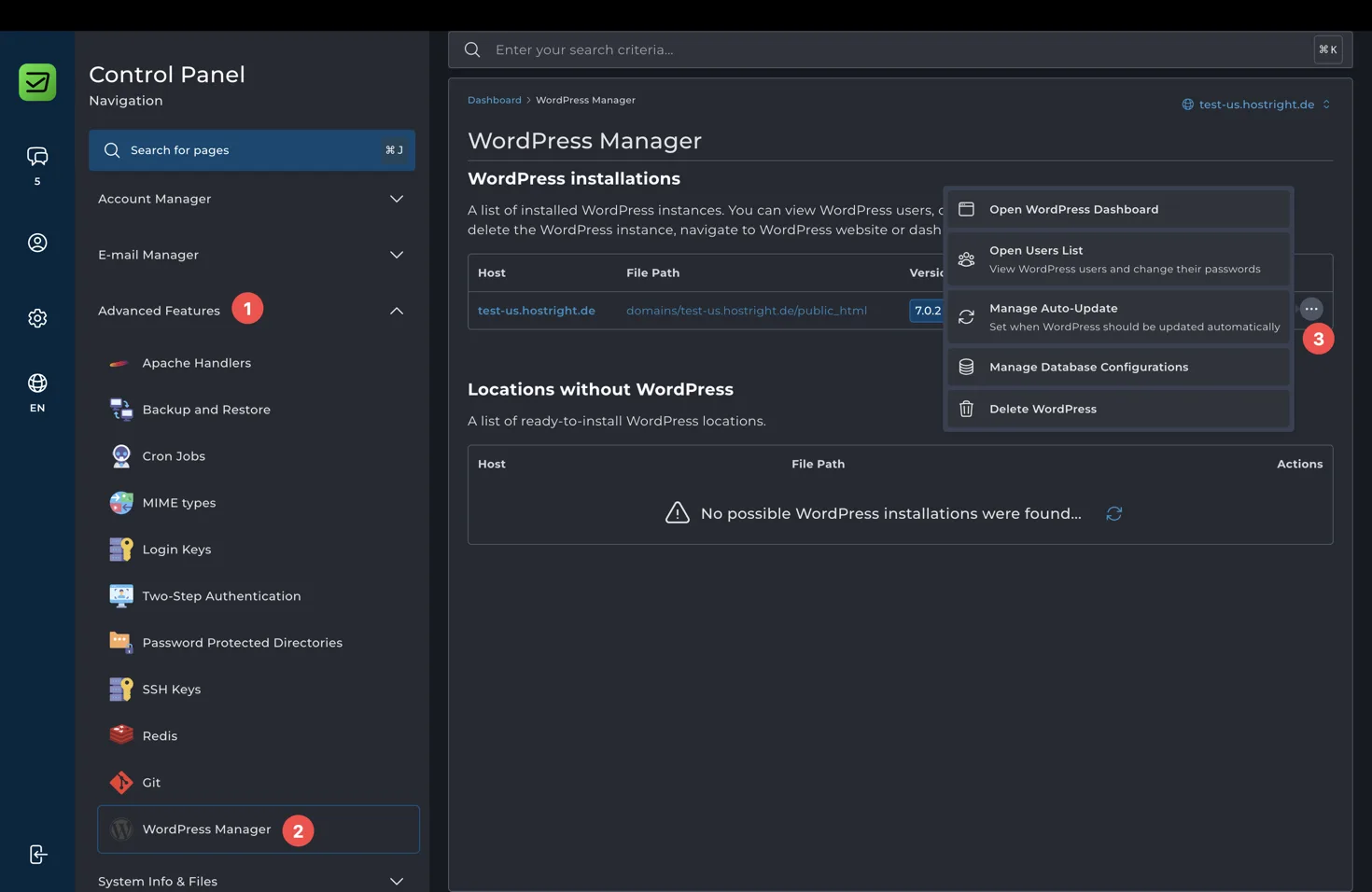
The menu includes shortcuts to:
- Open the WordPress dashboard
- Open the WordPress users list
- Change user passwords
- Sign in as an available user
- Manage automatic updates
- Manage database configuration
- Delete WordPress
This is useful when you run more than one site because common account tasks stay separate from the WordPress content editor.
Choose automatic updates
Select Manage Auto-Update to choose how WordPress should be updated:
- On: Update WordPress automatically when a new release is detected.
- Minor only: Apply minor releases automatically and review major releases yourself.
- Off: Update WordPress manually.
Automatic updates reduce the time your site spends on an old WordPress version. Before enabling them, keep a current backup and make sure your theme and plugins are maintained.
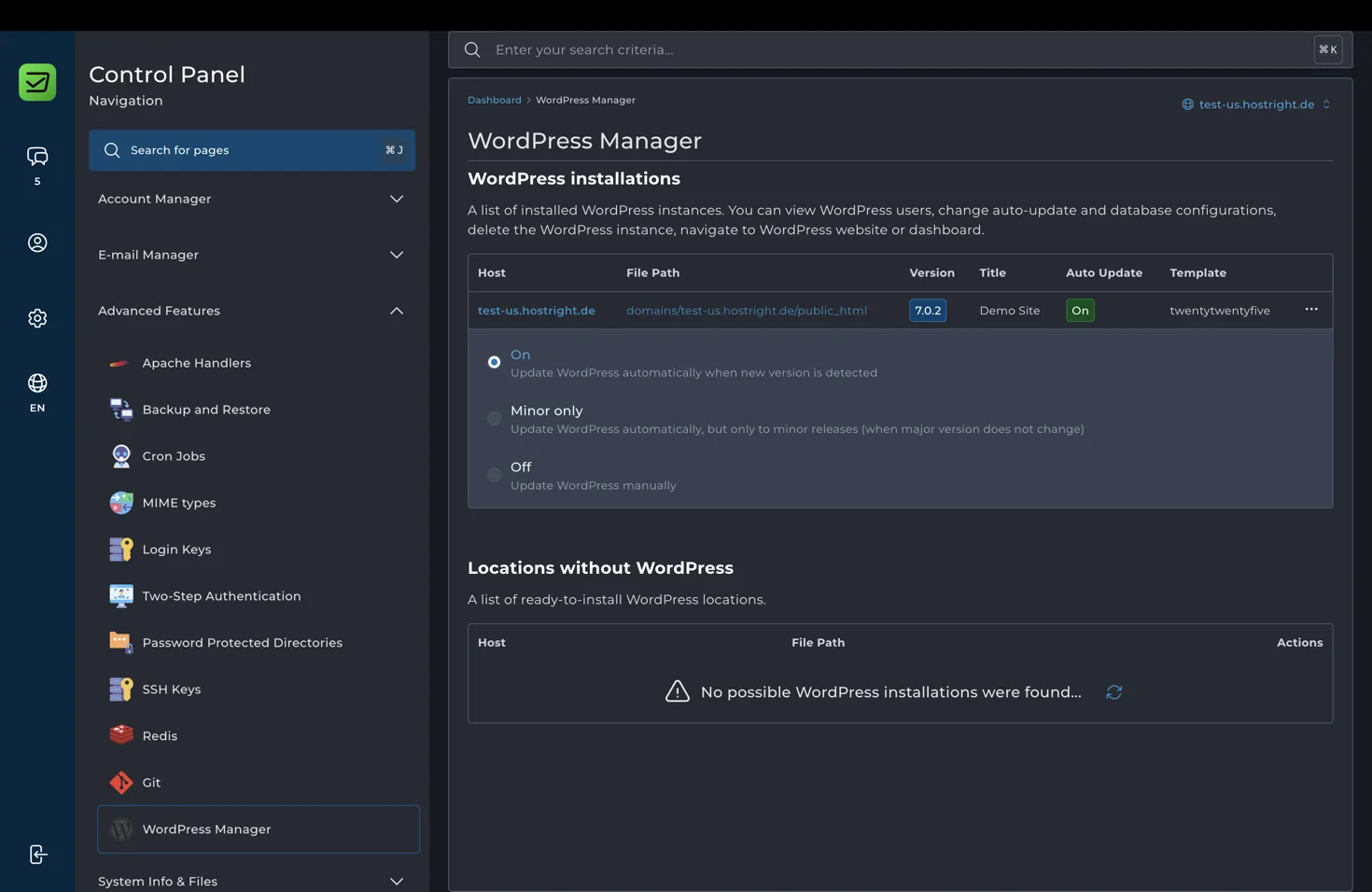
HostRight includes daily backups. Keep backups enabled and take an additional backup before major plugin, theme, database, or configuration changes. Automatic upgrades are useful, but you should still use maintained plugins and test important sites after updates.
Manage WordPress users
Select Open Users List to see the users for the installation. WordPress Manager lets you change a user password and provides Sign In when that shortcut is available.
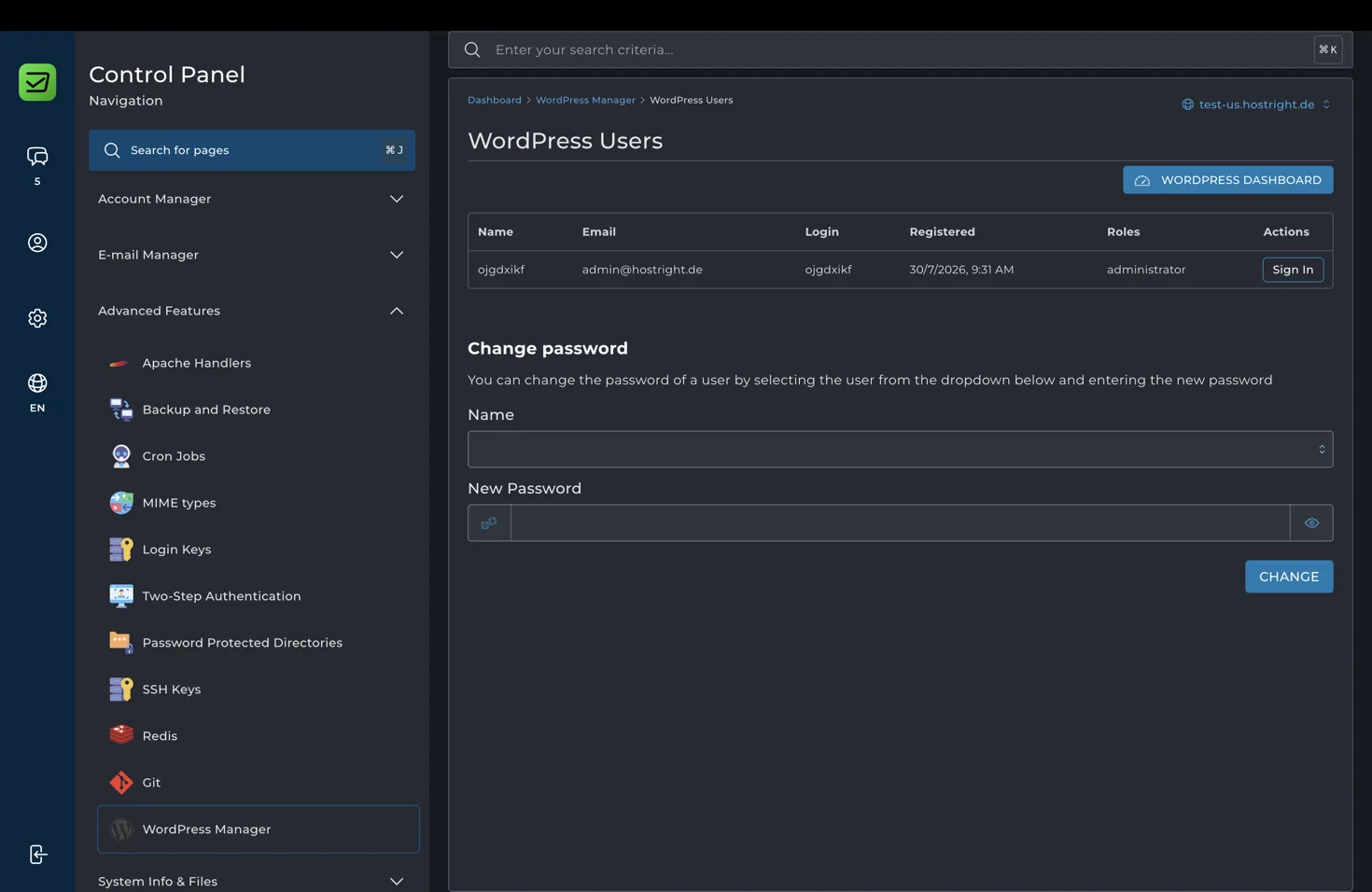
Use separate administrator accounts for collaborators instead of sharing one password. Give each person the lowest WordPress role they need.
Manage the database configuration
Select Manage Database Configurations to review the database host, database name, database user, database password, and table prefix.
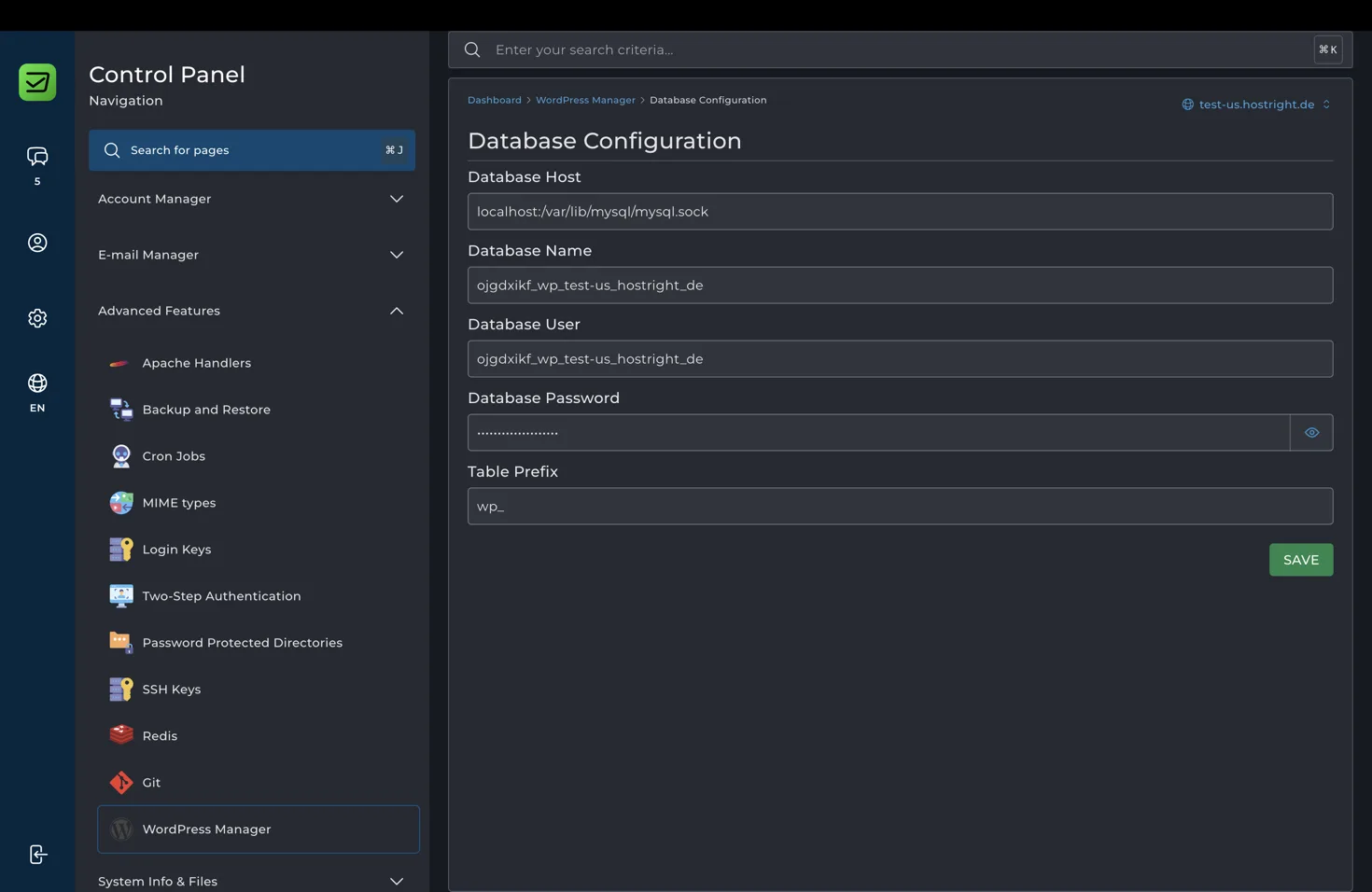
Only change these values when you have matching database credentials. A wrong database name, user, password, or host can take the site offline. Take a backup before making a database change.
Add Redis caching when the site needs it
Redis is included on HostRight shared hosting plans. It can reduce repeated database work by storing replaceable WordPress objects in memory.
To configure it:
- Open Advanced Features → Redis.
- Enable Redis for the account.
- Copy the Unix socket path shown in the Control Panel.
- Install a Redis-compatible WordPress object-cache plugin.
- Enter the socket path and use a separate Redis database ID for each application.
- Test the site after enabling the cache and after flushing cache entries.
Follow the Redis setup guide for the socket configuration. Redis helps with repeated reads, sessions, and cacheable objects. It does not replace a database, fix a slow plugin, or make oversized images smaller.
Keep large media out of the application disk
Starter includes 1 GB of NVMe storage, and that space is shared by WordPress files, plugins, themes, databases, logs, backups, and media. For a normal blog, this may be enough. For photography, video, user uploads, or a large product catalog, use a larger plan or consider S3-compatible object storage with a media-offload plugin.
Object storage lets the WordPress application stay on HostRight while large media files are stored separately. This can be more efficient than moving the whole site to an expensive plan just for images and videos.
Use restricted access keys, test uploads and restores, and confirm that thumbnails, responsive images, backups, and CDN URLs continue to work. A small site is often simpler with local media, so use object storage when the media library actually justifies it.
If you need more local storage, contact HostRight support before moving the site. A storage add-on or separately priced custom storage arrangement may be available for your service. Support can confirm the available capacity, price, and how the extra storage affects backups and billing.
HostRight compared with other WordPress hosts
Hostinger
Hostinger is a strong alternative when you want more included local disk, a bundled CDN, and a packaged website-building experience. Its current page shows a $2.99/month Premium offer based on a 48-month upfront purchase, with a higher renewal price. It lists 20 GB SSD storage and three websites. See Hostinger’s current pricing and its resource limits before ordering.
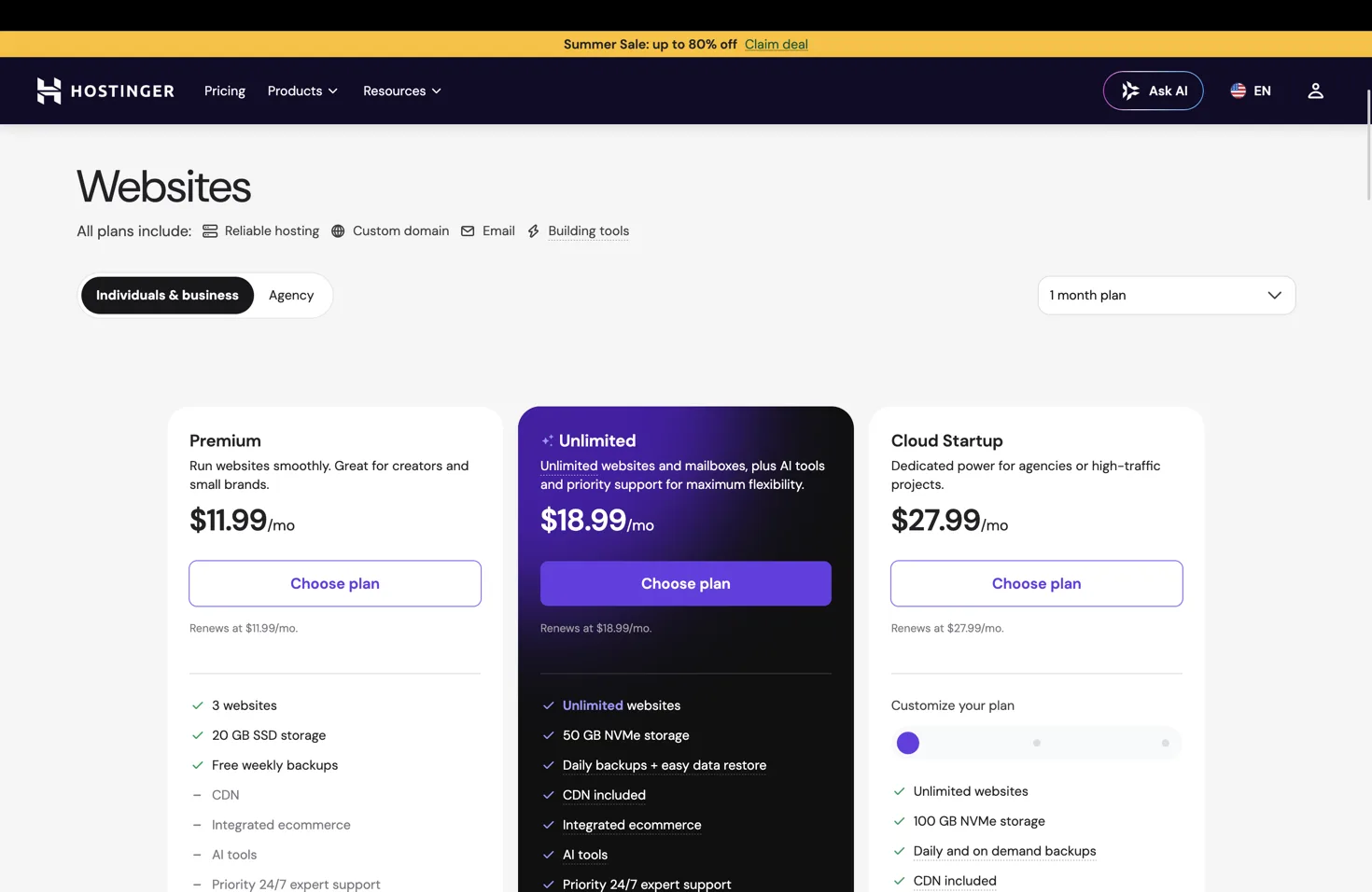
The $2.99/month figure in this image is the monthly equivalent of a 48-month upfront purchase. It is not Hostinger's month-to-month price. With 1 month plan selected, the same comparison shows Premium at $11.99/month for 20 GB SSD and three websites, Unlimited at $18.99/month for 50 GB NVMe, and Cloud Startup at $27.99/month for 100 GB NVMe. Compare Hostinger's current pricing and documented resource limits before ordering.
HostRight is a better fit if you prefer a visible monthly starting price, a defined capacity model, and tools such as Redis, SSH, Git, cron jobs, and PHP version control. Hostinger may be better if you need more local disk or prefer a longer prepaid package.
For a proper monthly comparison, HostRight Starter is $2.99/month with monthly billing. Hostinger Premium is $11.99/month when its 1 month plan is selected. HostRight also offers annual, two-year, and three-year terms. On Starter, the three-year term is $83.72 billed every three years, equal to about $2.33/month, because only 28 months are charged and 8 months are free. The same discount structure applies to Growth and Business.
WordPress.com
WordPress.com is a fully managed WordPress platform. It handles more of the infrastructure, security, updates, backups, and support for you. Its current plan information lists 6 GB for Personal, 13 GB for Premium, and 50 GB for Business or Commerce. See the WordPress.com plan comparison and storage guidance for current details.
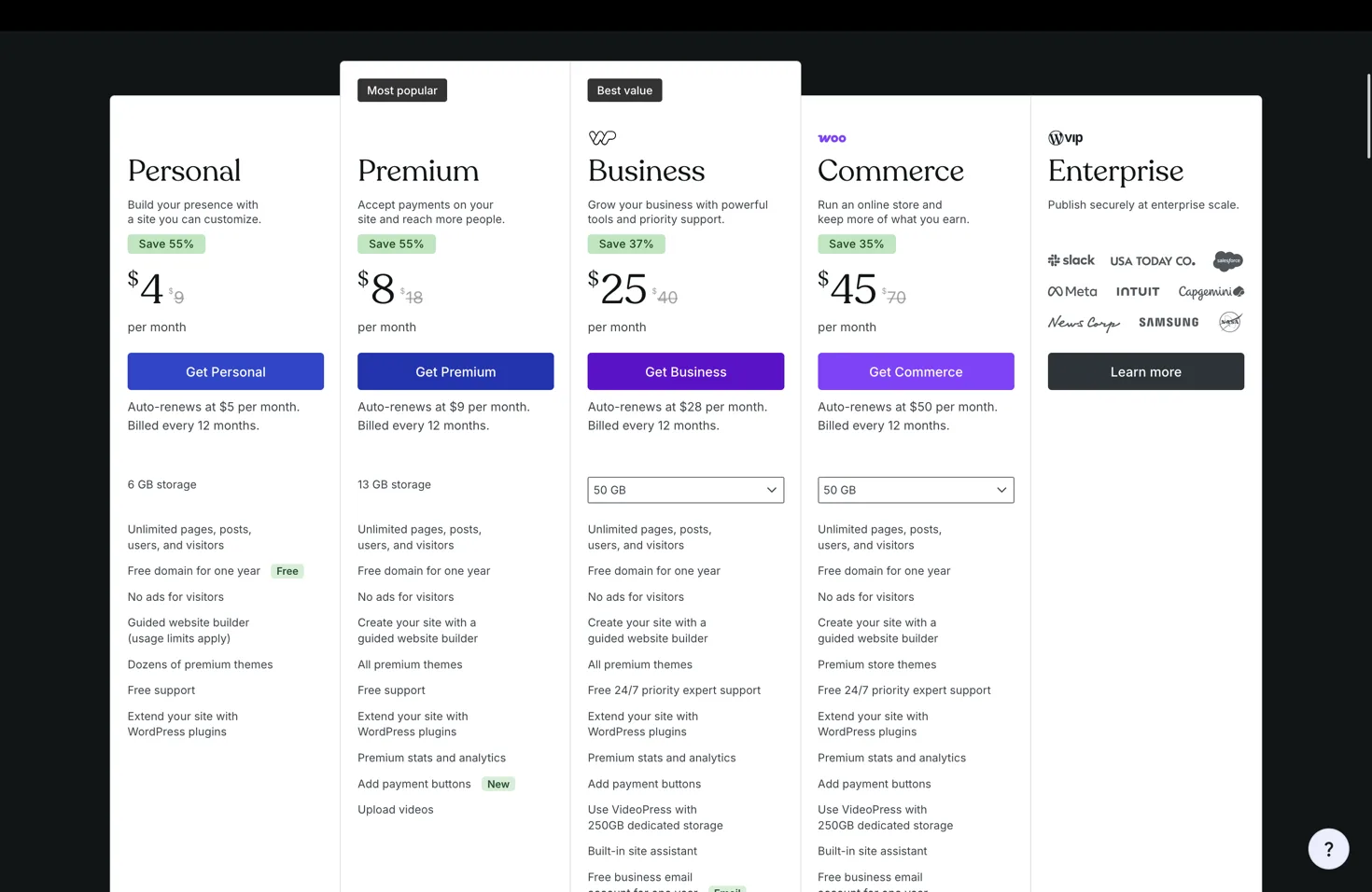
HostRight gives you more conventional hosting control, including direct database, file, DNS, SSH, Git, cron, and Redis access. WordPress.com is a better fit if you want the provider to handle more of the technical operation and you prefer a focused WordPress platform.
Compare the total paid today, renewal price, billing term, storage, CPU and RAM limits, backups, portability, and upgrade path. A low monthly number can mean a multi-year payment, so compare the complete checkout rather than the headline price.
The same rule applies to every provider. Compare monthly with monthly first, then compare prepaid terms separately. HostRight's advantage is that its regular monthly price is already low, while its three-year option lowers the effective monthly cost further without calling a large 48-month payment monthly billing.
Pros and cons
Pros
- $2.99/month starting point for one WordPress site
- One-click installation with WordPress Manager
- Daily backups, SSL, databases, email, and DNS included
- Up to 1 CPU core and 2 GB RAM on every shared plan
- Redis, SSH, Git, cron jobs, and PHP version control included
- Multiple-site plans for freelancers, teams, and agencies
- S3-compatible storage can extend media capacity
- The same account can host PHP, Python, and Node.js applications
Cons
- Starter has only 1 GB of local storage
- CPU and RAM are shared resources, not dedicated allocations
- You manage plugin quality, theme compatibility, and configuration
- Large media sites may need Growth, Business, or object storage
- High-traffic or compute-heavy stores may need a different architecture
Final recommendation
Choose HostRight Starter for one normal WordPress site with a compact media library. Choose Growth for several sites, staging, client work, or more room for plugins and uploads. Choose Business when you manage a larger group of sites and need 10 GB of local storage.
HostRight is affordable because it keeps the plan limits clear, not because it hides them behind an unlimited label. You get a complete WordPress workflow at a low starting price, then you can add Redis, move large media to object storage, or upgrade the plan as the site grows.
If you want a conventional WordPress installation with useful hosting controls and a straightforward path from signup to management, start with HostRight hosting.