
Hosting tools
Create and manage a MySQL-compatible database
Create a database and user, connect with phpMyAdmin, check server details, and import or export database backups from the HostRight Control Panel.
HostRight servers support MySQL-compatible databases. The database software is patched and upgraded by HostRight, while you are responsible for making sure that your application is compatible with the database version shown in your account.
The exact database version and connection details are available in the Databases section of the Control Panel. Check them before installing or upgrading an application that has specific database requirements.
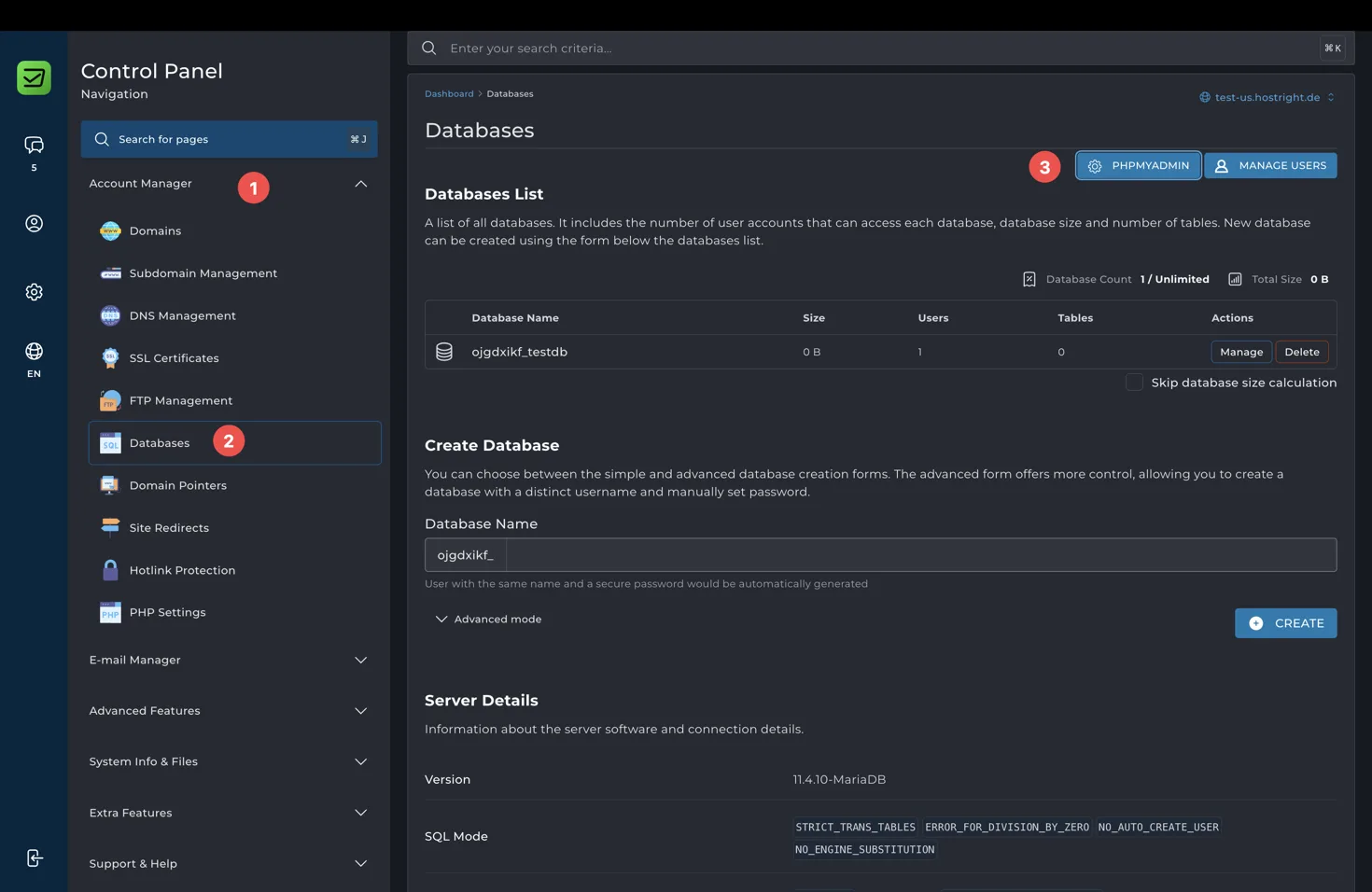
Open Databases
Sign in to the HostRight Control Panel. Under Account Manager, select Databases.
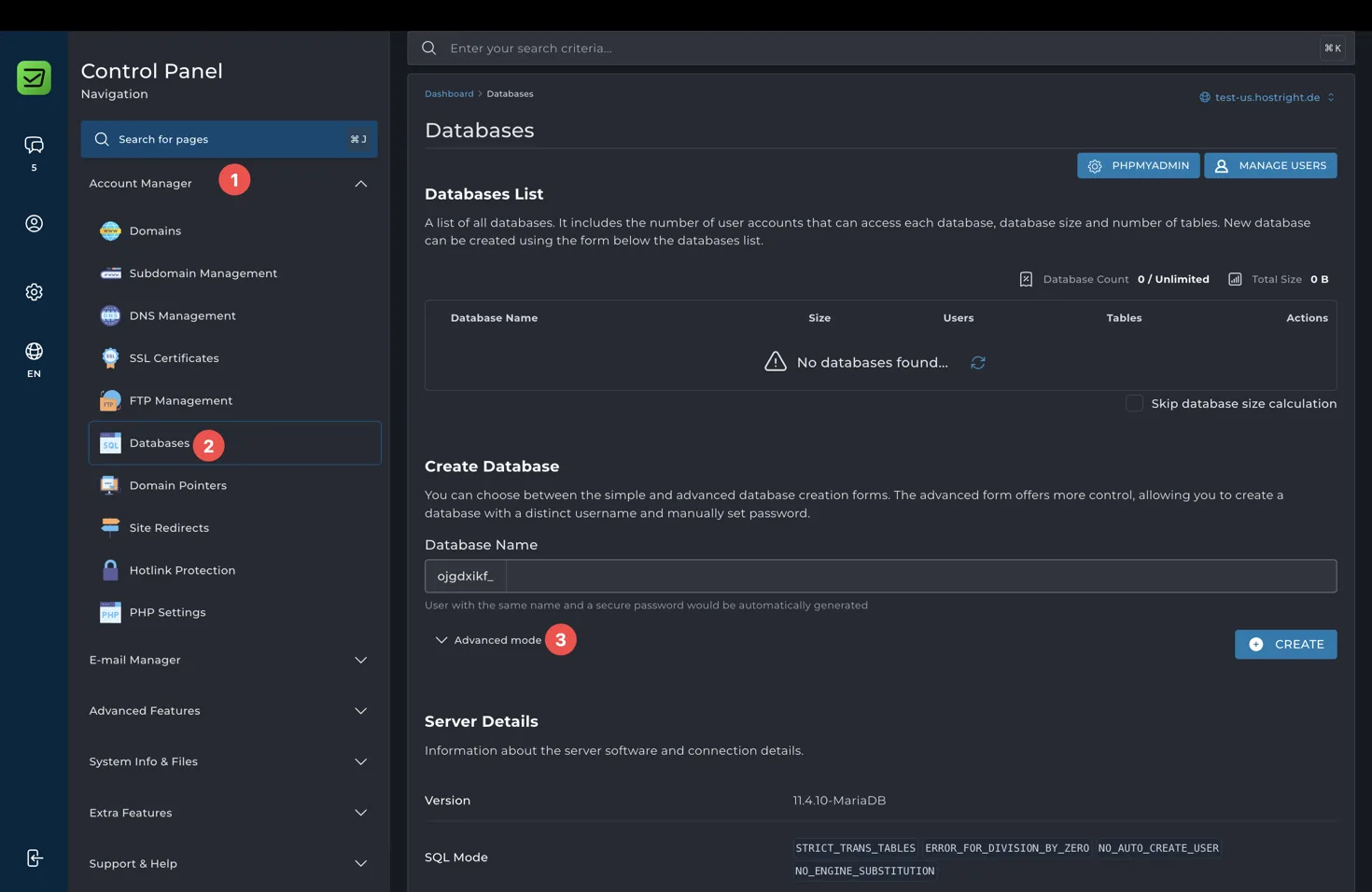
The database page shows your database list, database count, total size, users, and tables. It also includes the controls for creating and managing databases.
Create a database
Enter a database name in the Create Database form, then select Create. The simple form creates a database and automatically generates the related user and a secure password.
If you need to choose a separate username or set a password yourself, open Advanced mode.
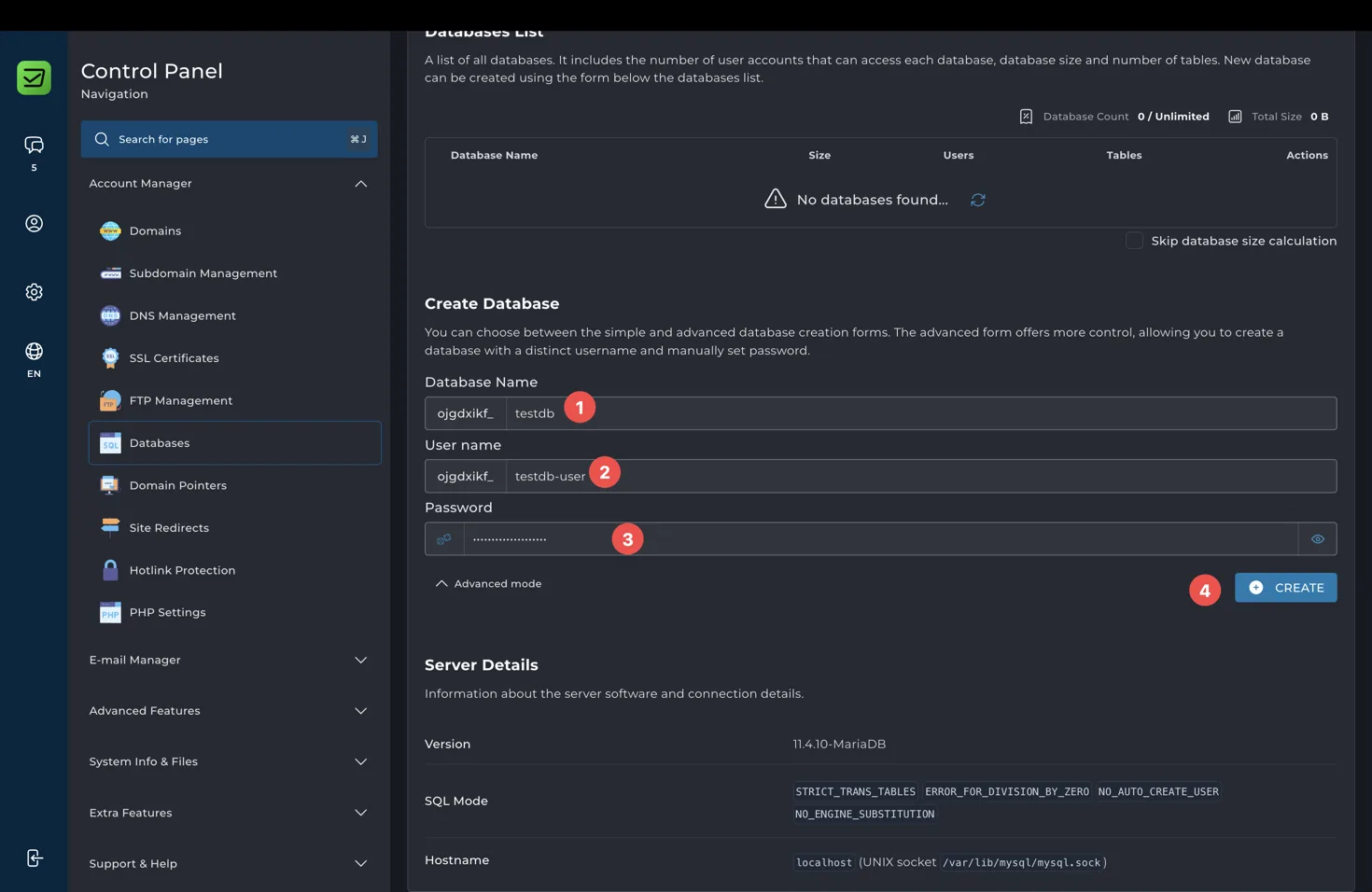
In advanced mode, enter the following values:
- Database name
- Database username
- Database password
Use a strong, unique password and do not reuse it for the Control Panel, email, SSH, or another service. Select Create after reviewing the values.
When the database is created, the full database name and username may include the account prefix. Copy the database name, username, password, and host details into your application configuration or password manager.
Do not store database credentials in a public website file, commit them to a source repository, or include them in a support message. Use environment variables or your application’s protected configuration system when available.
Manage a database
Select Manage beside a database to access its database-specific operations. Depending on the control panel options, the management area can be used to:
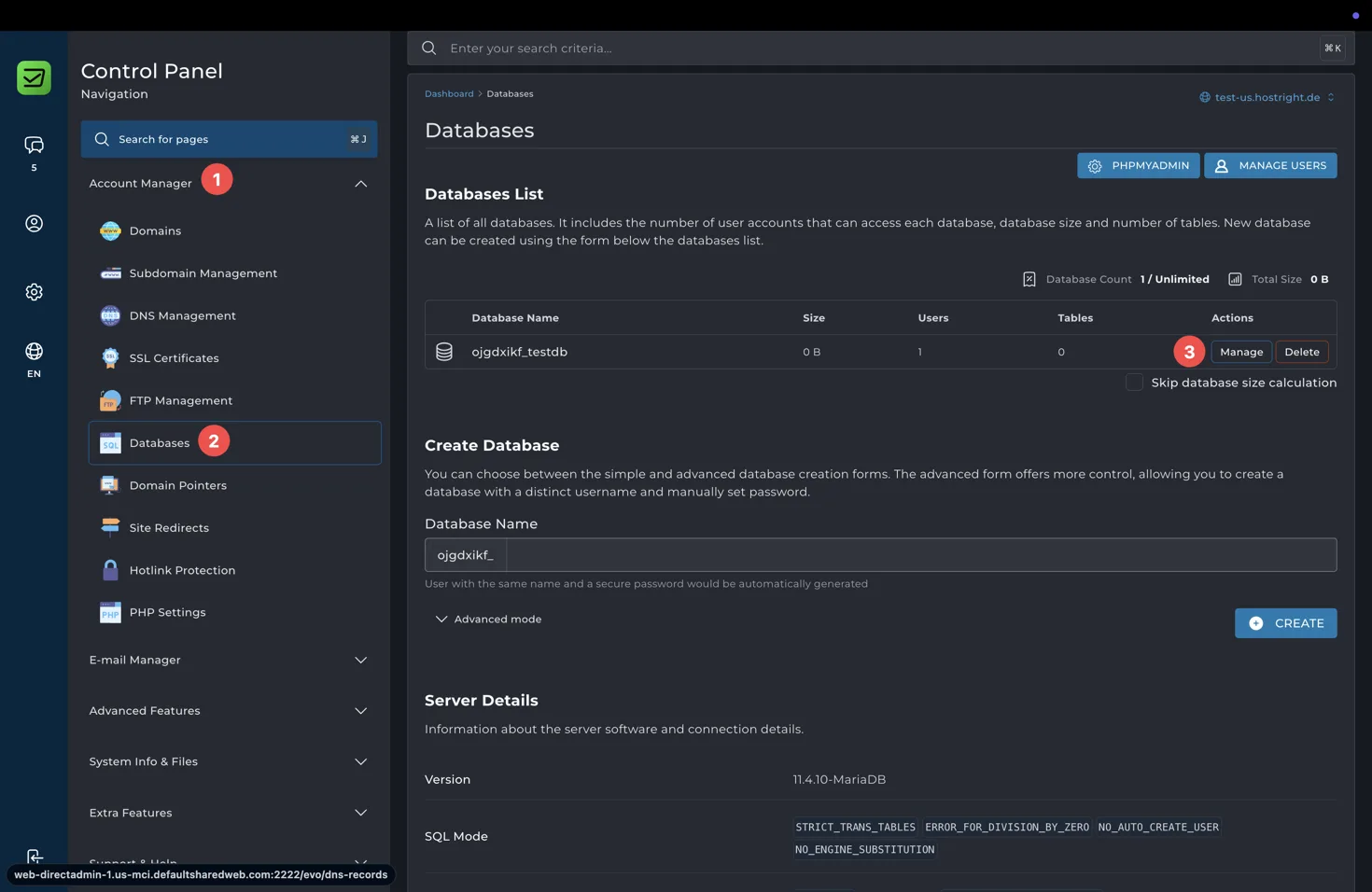
- Review database information
- Review and manage database users
- Open phpMyAdmin
- Export the database
- Import a database backup
- Check database size, users, and tables
Use Manage Users when you need to review or change which users can access the databases in the account. Use the database management controls when working with one specific database.
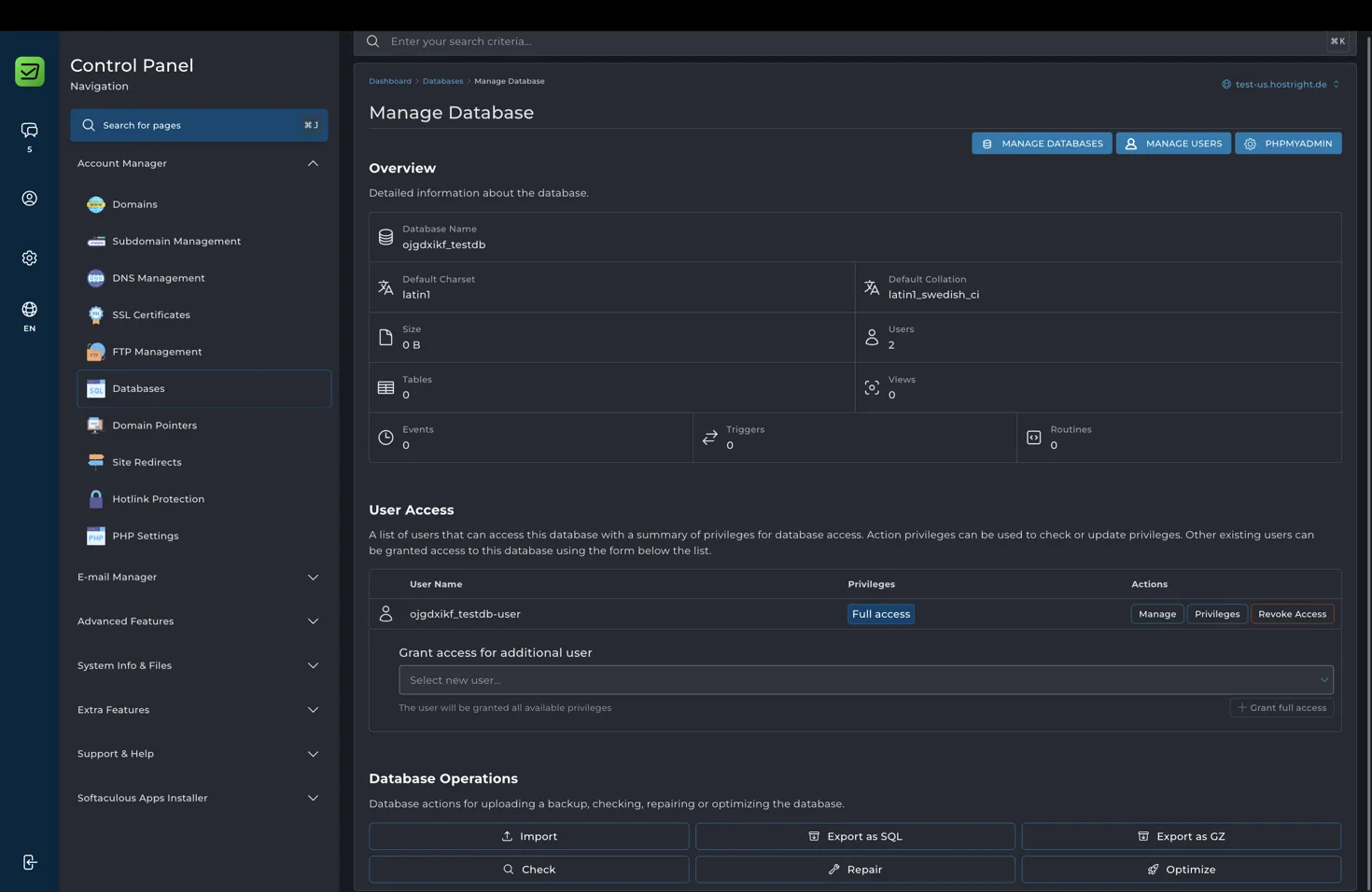
The Manage Database view shows the database overview, default charset and collation, size, users, tables, views, events, triggers, and routines. It also shows the users that can access the database and their privileges.
The database operations available in this view include:
- Import: upload a SQL or compressed database backup.
- Export as SQL: download a SQL export.
- Export as GZ: download a compressed database export.
- Check: check the database for problems.
- Repair: attempt to repair supported database issues.
- Optimize: optimize supported database tables.

Use Check, Repair, and Optimize carefully on an active production database. Create a backup first, and schedule maintenance when an operation may affect application availability.
Open phpMyAdmin
Select phpMyAdmin from the Databases page to manage your database through a web interface.
In phpMyAdmin, select the database from the left panel. You can browse tables, inspect table structure, search records, export data, import data, and run SQL queries.
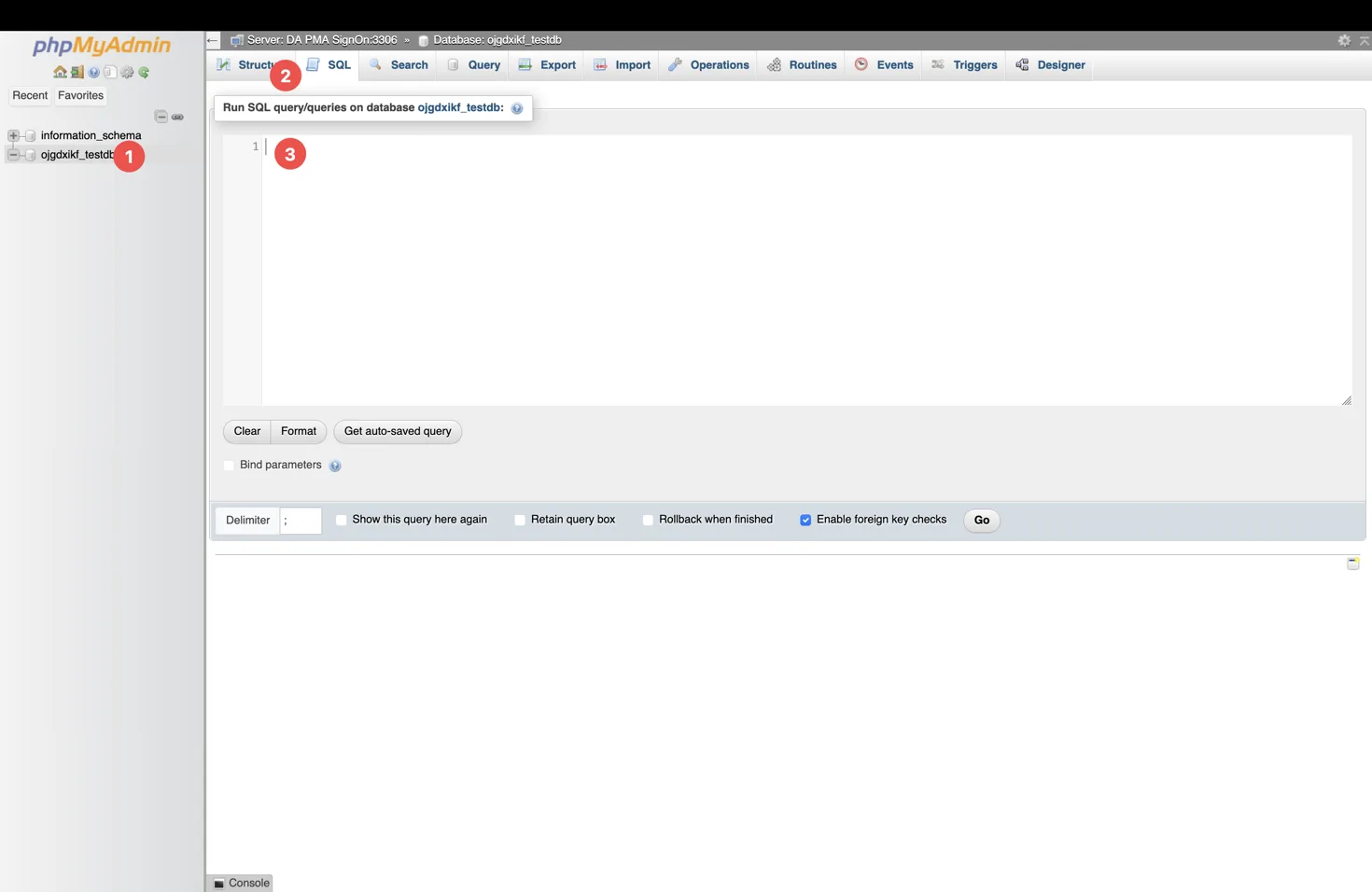
You can run SQL queries from the SQL tab. Review queries carefully before running them, especially UPDATE, DELETE, DROP, and schema-changing statements. A query can permanently change or remove data.
Check server details
The Databases page includes server details below the database creation form.
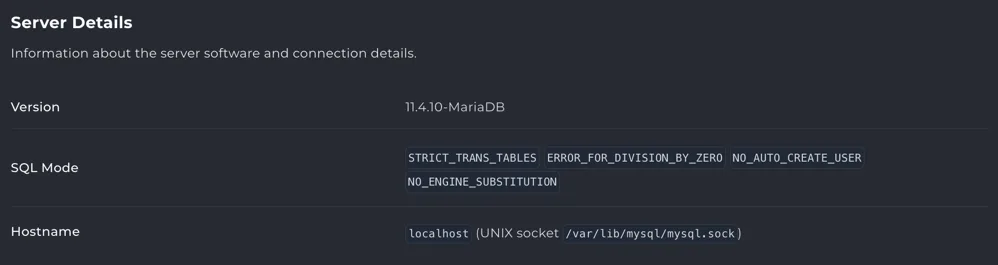
The server details can include:
- Database software version
- SQL mode
- Database hostname
- Unix socket path
Use the hostname shown for the database connection in your application. On the hosting server, the database hostname may be localhost, while the Unix socket path can be used by applications configured for local socket connections. Follow the connection format required by your framework or application.
Export a database backup
To create a database backup, open Manage beside the database and choose Export. Select the compressed GZ format when available, then download the generated backup file.
Keep the exported file in a secure location. Database exports can contain customer records, account information, passwords, tokens, and other private data.
For a complete account backup that includes website files and other account data, use the regular backup system described in How to back up and restore your website. A manual or downloaded database export is useful as an additional copy or before a database change.
Import a database backup
To restore data from a database export, open Manage beside the database and choose Import. Select the backup file and start the import.
You can also use phpMyAdmin when you need to import a SQL or compressed SQL file through the web interface. Confirm that the backup belongs to the selected database before starting the operation.
Before importing over an active database:
- Create a fresh backup of the current database.
- Check whether the import will replace tables or add data.
- Confirm that the database and application versions are compatible.
- Put the application into maintenance mode if the import may take time.
- Test the application after the import completes.
An import can replace existing tables or create duplicate records depending on the SQL statements in the backup. Take care with production data.
Database versions and maintenance
HostRight handles regular database patching, security updates, and infrastructure upgrades. The database version shown in the Control Panel is the version currently available to your account.
Before deploying or upgrading an application, check its supported MySQL or MariaDB versions and compare those requirements with the version shown under Server Details. Keep your application, plugins, database schema, and connection libraries compatible with the server version.