
Hosting tools
Deploy website files with FTP
Create an FTP account, choose its directory access, save the credentials, and use FTP to upload website files to HostRight.
FTP lets you copy website files from your computer to your HostRight hosting account. It can be useful for simple websites, legacy applications, or deployment tools that support FTP credentials.
For new deployments, SFTP is usually the better choice because it transfers files through an encrypted SSH connection. You can also deploy through SSH and Git when your application workflow supports it. This guide focuses on creating an FTP account and transferring files with FTP.
Open FTP Management
In the HostRight Control Panel, expand Account Manager and select FTP Management.
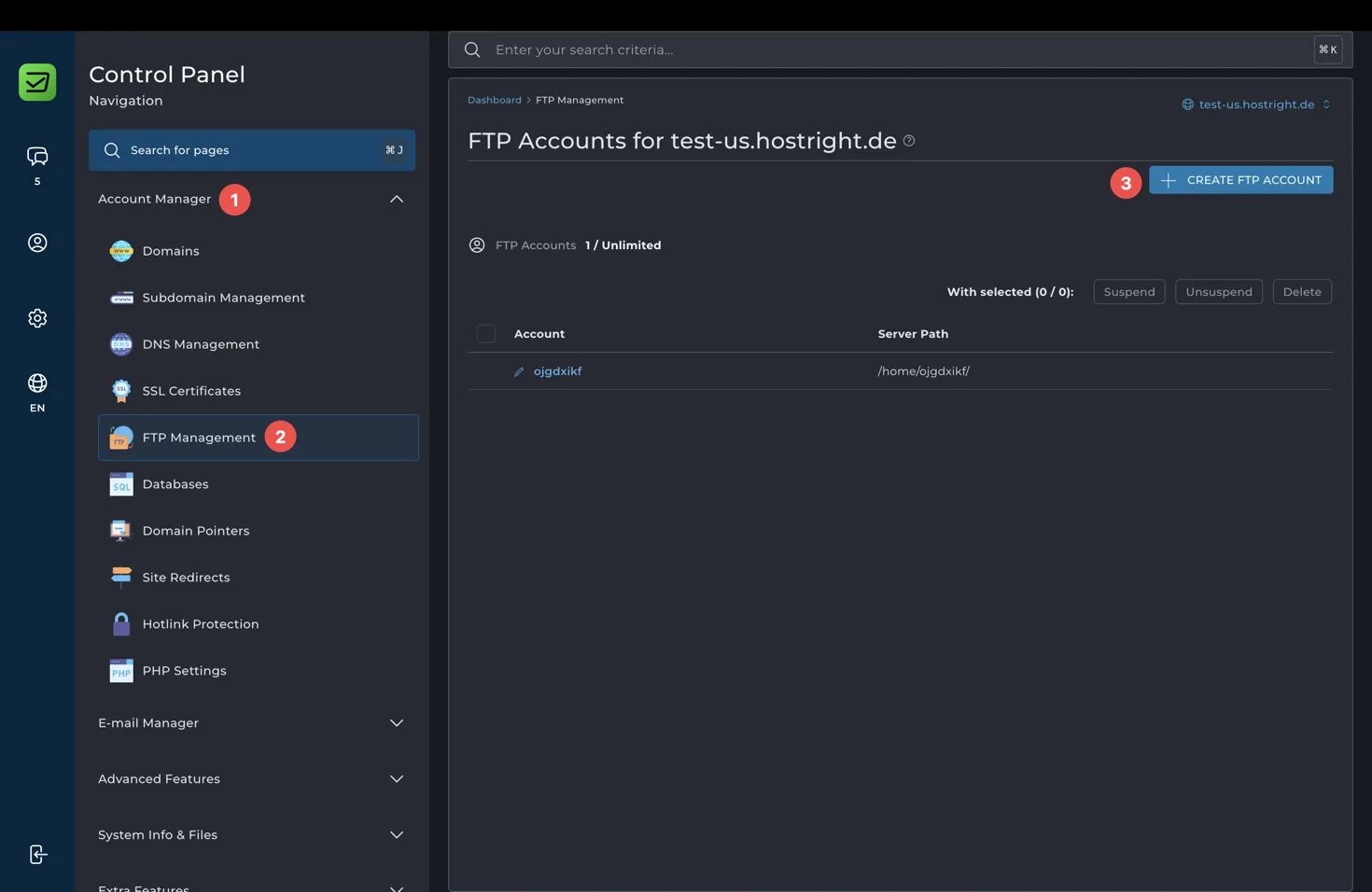
The page lists existing FTP accounts, their server paths, and the account limit. Select Create FTP Account to add an account.
Create an FTP account
Enter the FTP username and a strong password, then choose the directory scope for the account.
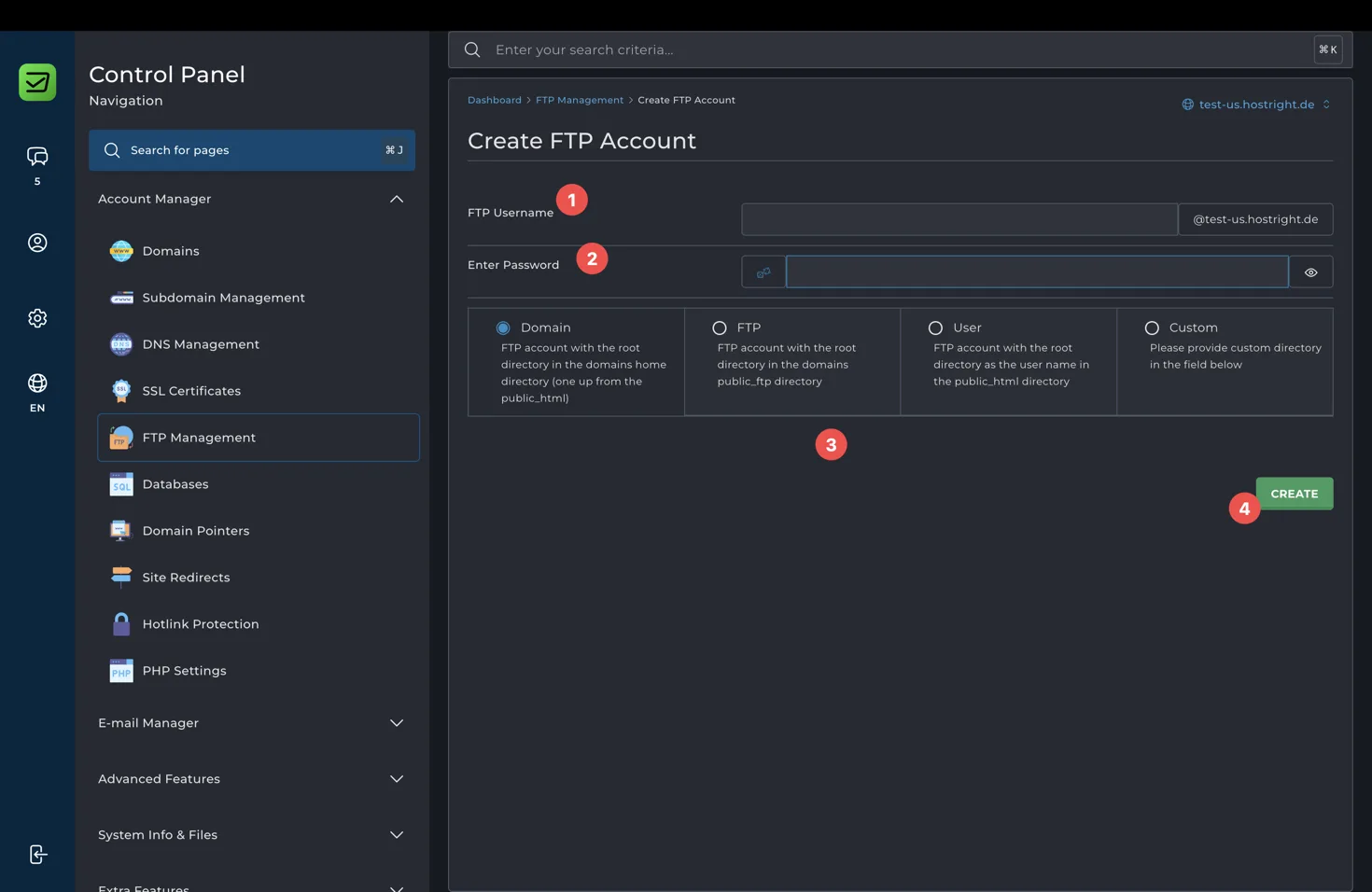
The directory options control what the FTP account can access:
- Domain: starts in the selected domain home directory, including the domain's
public_htmldirectory. - FTP: starts in the domain's
public_ftpdirectory. - User: starts in a directory named after the FTP user inside
public_html. - Custom: uses a directory that you provide.
Choose the smallest directory scope that supports the deployment. If the account only needs to update one website, use the domain or custom directory that contains that website. Avoid giving a deployment account access to unrelated domains or account files.
Select Create after reviewing the username, password, and directory option.
Save the generated credentials
The Control Panel displays the FTP login, password, and server path after the account is created.
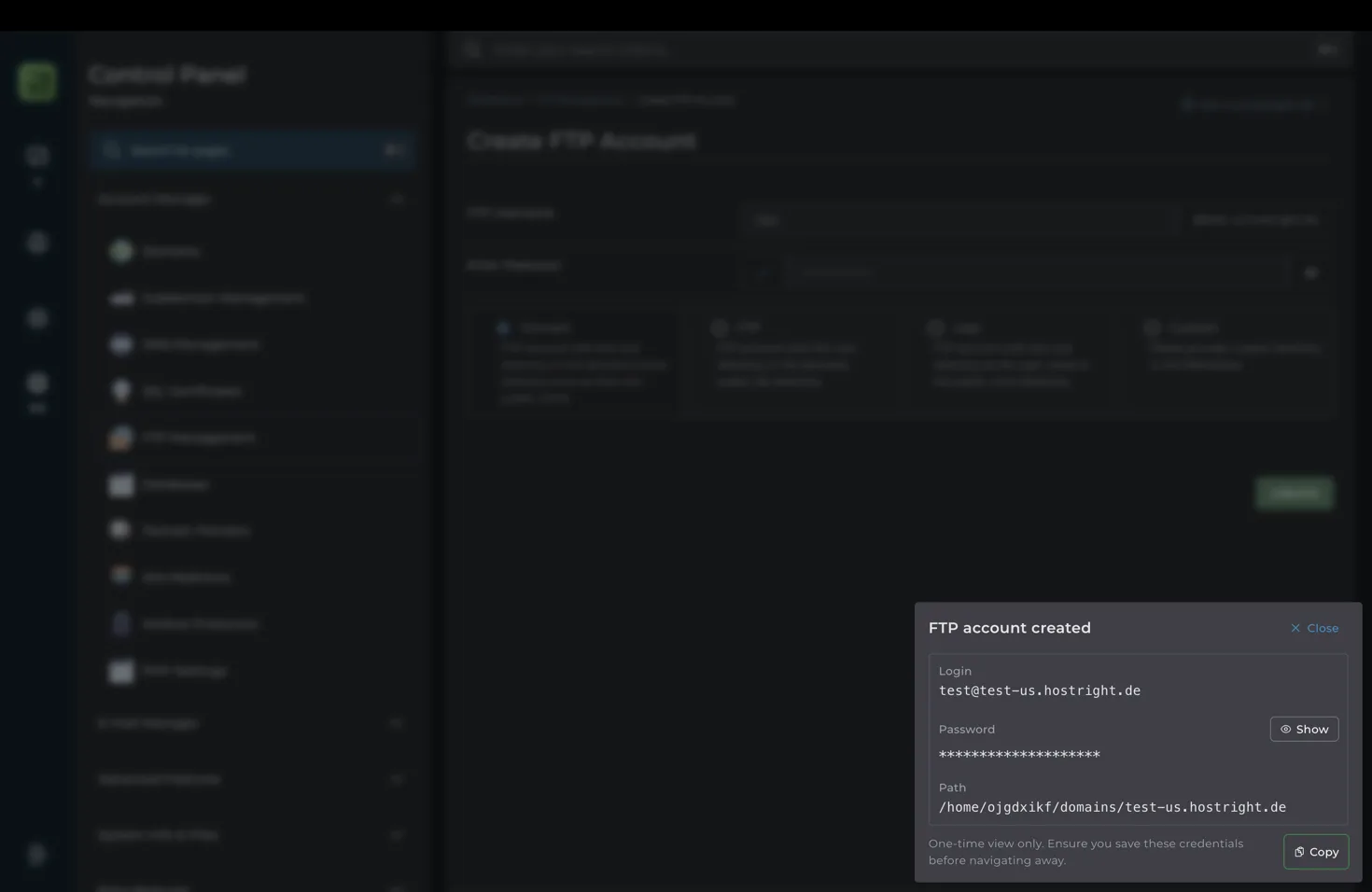
Save the credentials in a password manager before closing the confirmation panel. The password may be shown only once. Do not commit FTP credentials to source control, place them in a public website directory, or share them in an unprotected message.
The FTP username may include the domain suffix, such as deploy@example.com. Use the complete login shown by the Control Panel.
Connect with an FTP application
Open an FTP client such as FileZilla, Cyberduck, or the FTP tool built into your editor. Enter the values shown after creating the account:
- Protocol: FTP
- Server: the hosting hostname or domain shown by HostRight
- Port:
21unless the service specifies another port - Username: the complete FTP login
- Password: the FTP account password
- Transfer mode: passive mode when required by the client or network
Use the server path shown in the confirmation message as the starting directory. If the client opens the account home directory instead, navigate to the correct public_html or custom deployment directory before uploading files.
Upload a website
Build or prepare the website files on your computer first. Upload the generated files into the directory selected when the FTP account was created.
For a static website, the target directory normally contains the public index.html file and its assets. For an application, follow the deployment instructions for that language or framework. FTP can copy the files, but it does not install dependencies, run database migrations, configure environment variables, or restart application processes.
After uploading, open the website and check the home page, CSS, JavaScript, images, forms, and application routes. If assets return 404 errors, confirm that the client uploaded them into the correct directory and preserved the expected folder structure.
FTP security and limitations
FTP credentials provide access to the directories assigned to the account. Delete or suspend an FTP account when it is no longer required, and create separate accounts for separate people or workflows.
Traditional FTP does not provide the same encrypted transport as SFTP. Avoid using FTP on untrusted networks when possible, and use SFTP deployment for encrypted file transfers. For automated deployments, use a deployment-specific account with the smallest directory scope possible.
FTP is a file transfer method. Use the SSH guide when you need to run commands, use a chrooted terminal, or clone a Git repository on the server.