
Hosting tools
Set up email autoresponders
Create automatic replies for holidays, support acknowledgements, office hours, and other mailbox response workflows.
An autoresponder sends an automatic reply when a message arrives for a configured address. It can tell customers that a team is away, confirm that a support request was received, or provide expected response times.
Use an autoresponder when the sender should receive a reply. Use a forwarder when another mailbox or team should receive the original message.
Open Autoresponders
In the HostRight Control Panel, expand E-mail Manager and select Autoresponders.
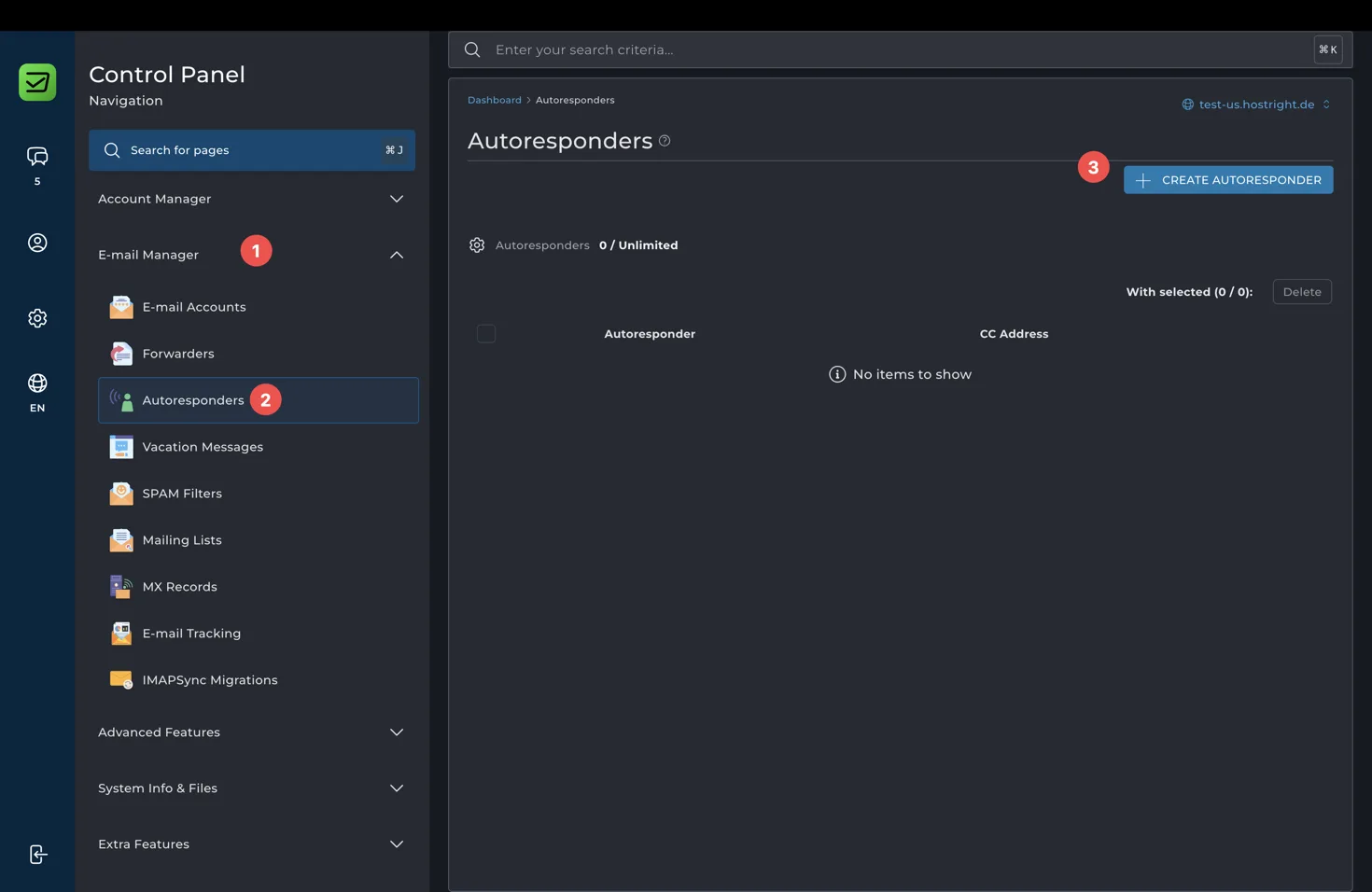
Select Create Autoresponder.
Configure the automatic reply
Enter the responder address, subject prefix, content type, reply frequency, and message. You can also add a CC address when the workflow requires it.
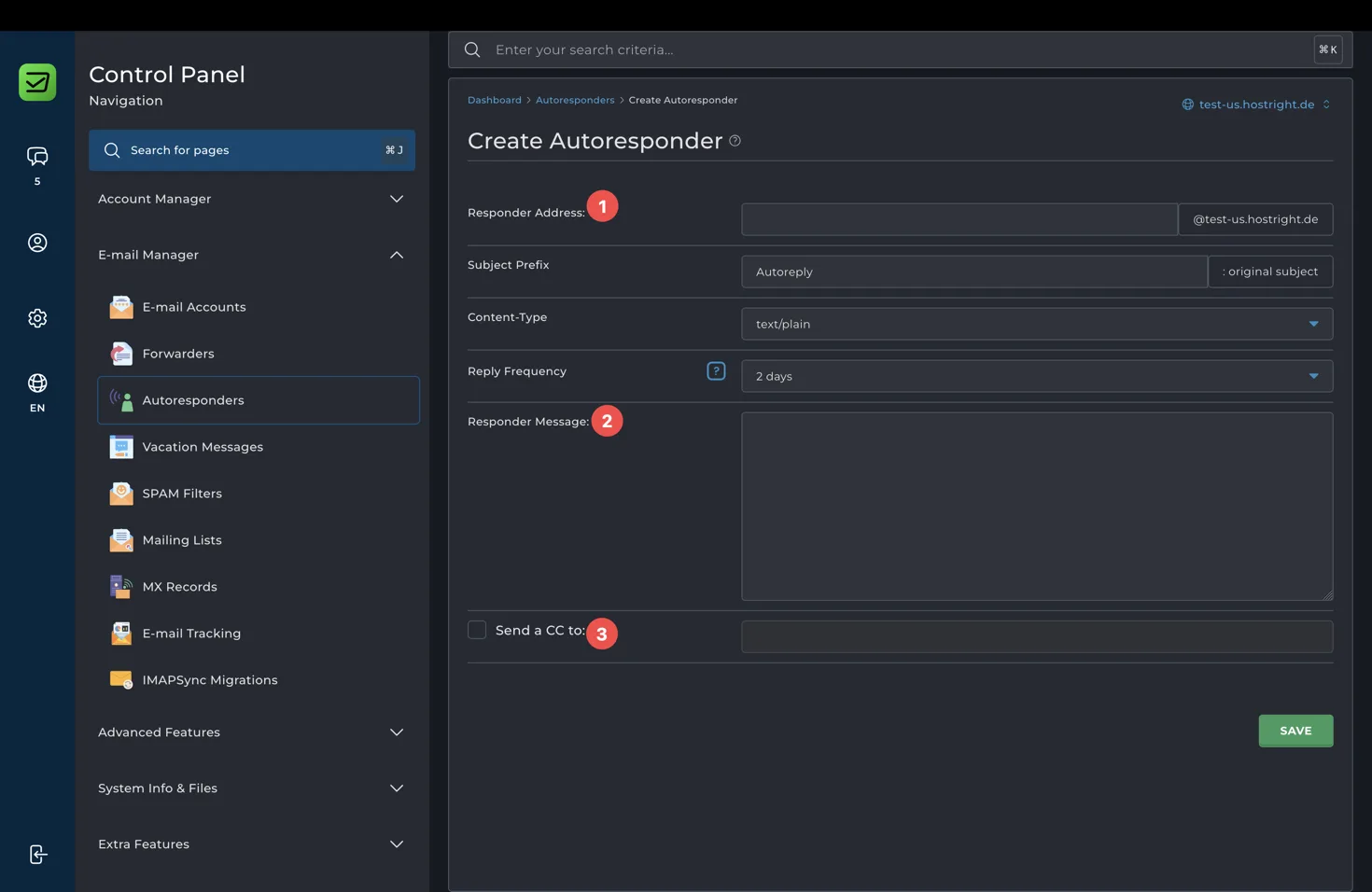
The numbered fields represent:
- Responder Address: the mailbox that receives the incoming message and sends the automatic reply.
- Responder Message: the text that will be sent to the original sender.
- Send a CC to: an optional address that should receive a copy of the automatic response.
The other fields control the response format and behavior:
- Subject Prefix: text added to the original subject, such as
Auto reply. - Content-Type: choose plain text or another supported format.
- Reply Frequency: controls how often the same sender receives the automatic response.
Write a useful message that includes the expected response time and an alternative contact method for urgent requests. Do not include passwords, private links, or sensitive account information in an automatic reply.
Select Save after reviewing the response.
Useful autoresponder examples
- A support mailbox can confirm receipt and provide the normal response time.
- A sales mailbox can acknowledge a quote request outside office hours.
- A personal mailbox can explain a holiday absence and provide an alternative contact.
- A billing mailbox can direct payment questions to the correct team.
Test the autoresponder from an external mailbox after saving it. Check the subject, message formatting, reply frequency, and CC behavior. Disable or update the autoresponder when the temporary situation ends.