
Hosting tools
Run scheduled tasks with Cron Jobs
Create safe scheduled commands for PHP, Laravel, Symfony, backups, reports, imports, and application maintenance in HostRight Control Panel.
Cron Jobs run commands on a schedule without requiring you to keep a browser or SSH session open. They are useful for framework schedulers, database imports, cleanup, reports, cache maintenance, and custom scripts.
Cron runs under your hosting account. It does not grant root access, and HostRight does not manage the correctness of commands or scripts you create.
Open Cron Jobs
Sign in to HostRight Control Panel, expand Advanced Features, and select Cron Jobs.
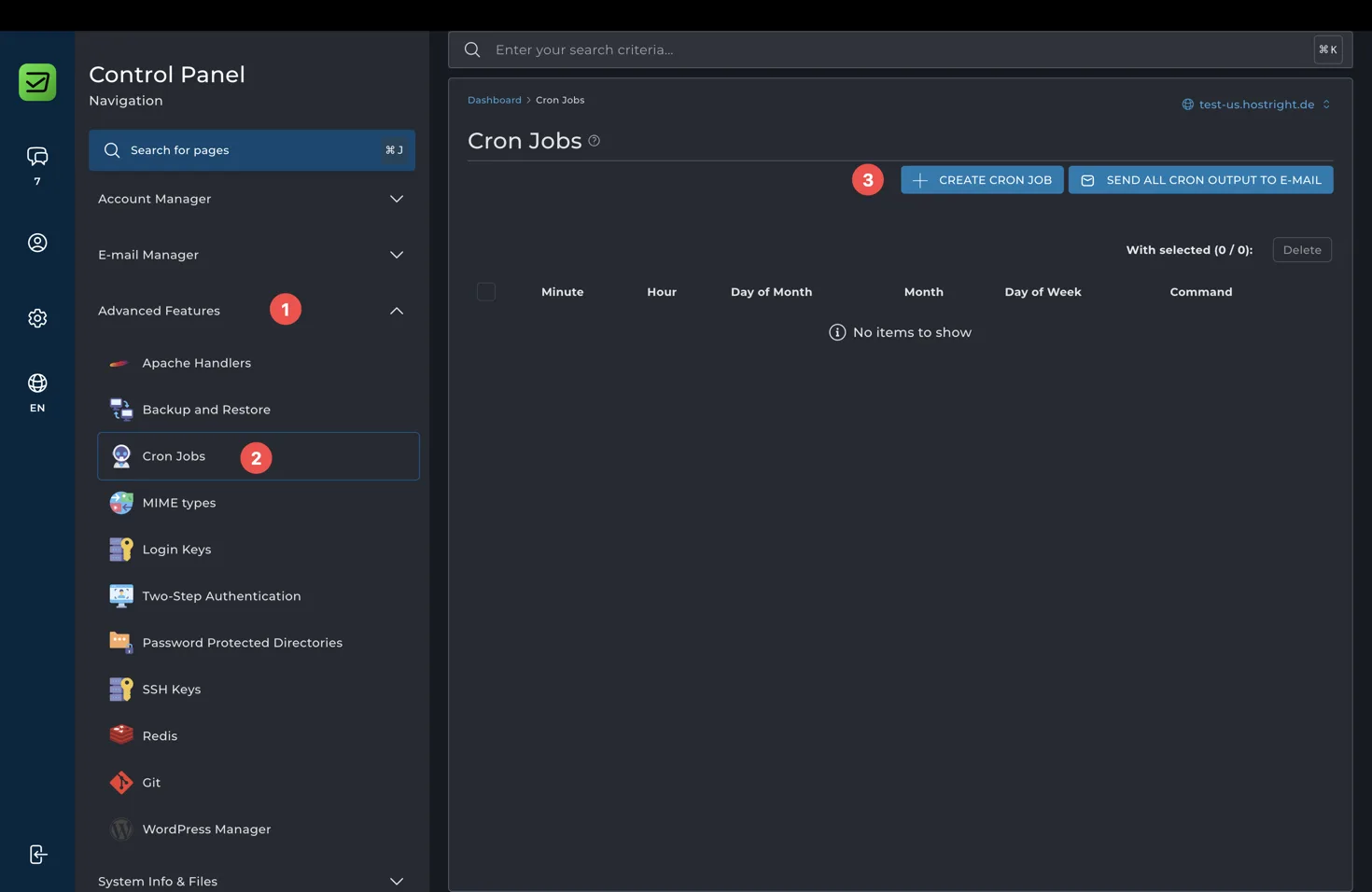
Select Create Cron Job.
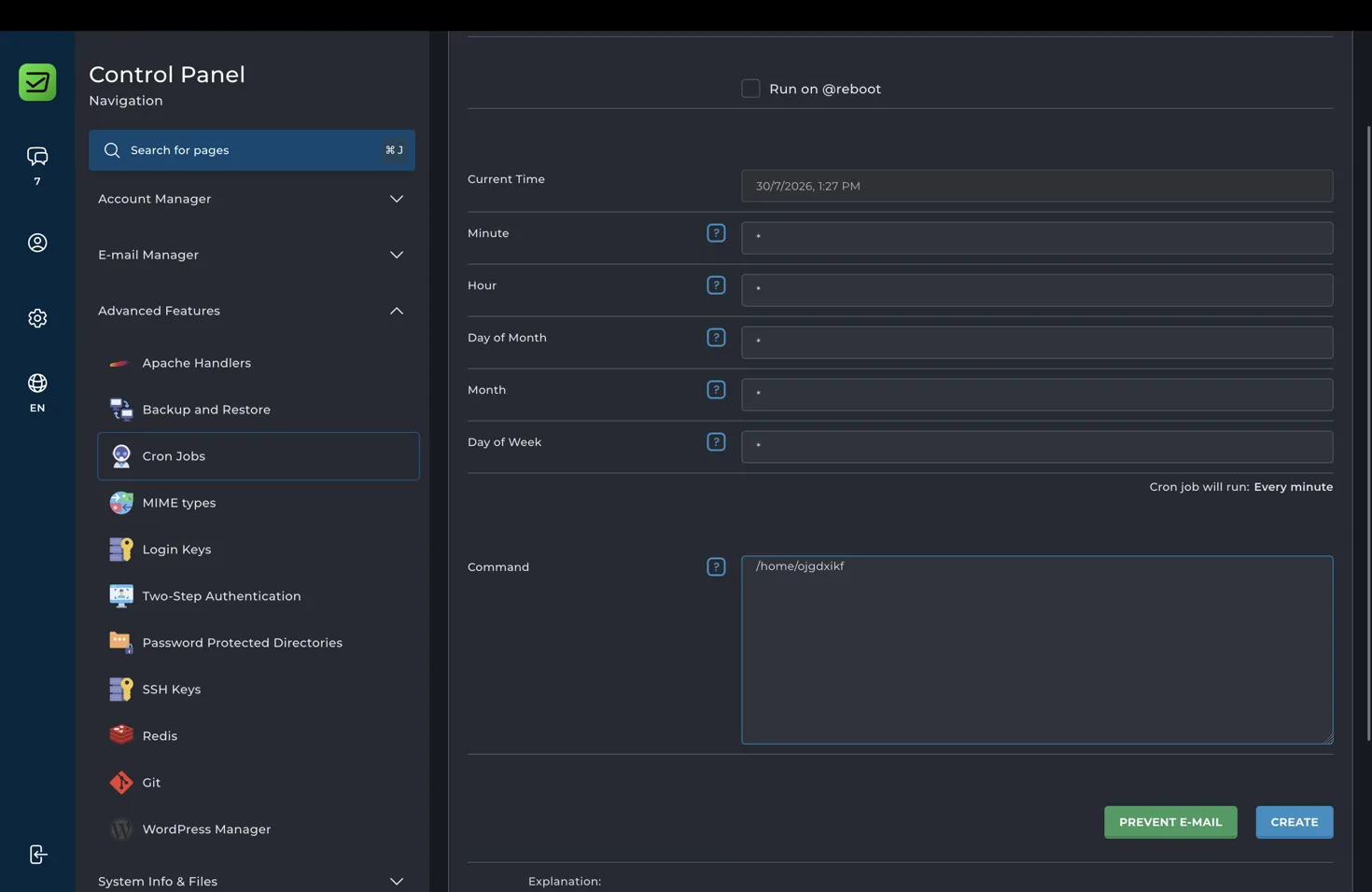
Choose the schedule
Cron uses five schedule fields:
| Field | Meaning | Example |
|---|---|---|
| Minute | Minute within the hour | 0 |
| Hour | Hour of the day | 2 |
| Day of Month | Calendar day | * |
| Month | Month of the year | * |
| Day of Week | Weekday | * |
Common schedules:
- Every minute:
* * * * * - Every five minutes:
*/5 * * * * - Every hour:
0 * * * * - Daily at 02:00:
0 2 * * * - Weekly on Sunday at 03:00:
0 3 * * 0
Use the least frequent schedule that meets the application requirement. A job that runs every minute should finish well within a minute or use locking so multiple copies do not overlap.
Use absolute paths
Cron may start in a different working directory and may have a smaller environment than an interactive SSH session. Use absolute paths, change into the application directory explicitly, and call the intended PHP binary.
Example PHP script:
/usr/local/bin/php /home/ACCOUNT_USERNAME/apps/example-app/scripts/cleanup.php
If the panel displays a PHP binary or virtual-environment path, use that exact path. For framework commands, run from the project directory:
cd /home/ACCOUNT_USERNAME/apps/example-laravel && /usr/local/bin/php artisan schedule:run >> /home/ACCOUNT_USERNAME/logs/laravel-scheduler.log 2>&1
Replace the account path and PHP binary with the values available in your service.
Send output to a private log
Redirect standard output and errors to a log outside the public web directory:
your-command >> /home/ACCOUNT_USERNAME/logs/task.log 2>&1
Review logs after creating a job. Rotate or remove old logs so they do not consume account storage. Do not write logs, database dumps, or backup archives into public_html or another public directory.
Framework examples
Laravel scheduler
Laravel normally needs one job every minute:
cd /home/ACCOUNT_USERNAME/apps/example-laravel && /usr/local/bin/php artisan schedule:run >> /home/ACCOUNT_USERNAME/logs/laravel-scheduler.log 2>&1
Define the actual schedule in the Laravel scheduler configuration. The Cron Job triggers the scheduler; it does not replace the scheduled definitions in the application.
Symfony command
Run a Symfony command daily:
cd /home/ACCOUNT_USERNAME/apps/example-symfony && /usr/local/bin/php bin/console app:daily-report --env=prod >> /home/ACCOUNT_USERNAME/logs/symfony-report.log 2>&1
Database or maintenance script
Use a private script for imports, cleanup, or reports and keep credentials in protected environment configuration. Test the command manually over SSH before scheduling it.
Secure and troubleshoot jobs
- Use a dedicated script or command with the smallest required permissions.
- Avoid putting passwords, API tokens, or connection strings directly in the Cron command.
- Use application locks for jobs that must not run concurrently.
- Run a dry run or test command manually before setting a frequent schedule.
- Confirm the script is executable when invoking it directly.
- Check the command path, PHP version, working directory, and environment variables when a job fails.
- Redirect output to a private log and inspect it after the scheduled time.
- Disable unused jobs so old imports or notifications do not keep running.
For custom backup schedules, see how to back up and restore your website. For PHP framework deployments, see Host PHP applications.