
Hosting tools
Use SSH and the chrooted terminal
Set up SSH keys, use the HostRight chrooted terminal, and connect securely to your hosting account over SSH.
HostRight provides a chrooted terminal and SSH access for command-line work on your hosting account. You can use SSH to manage files, run deployment commands, inspect logs, execute scripts, and perform other tasks that are easier from a shell.
SSH access is key-based. You must add or create an SSH key in the Control Panel before connecting from your computer. The chrooted environment limits the session to the hosting account, so commands do not have access to the rest of the server.
Open the chrooted terminal
Sign in to the HostRight Control Panel. Expand System Info & Files and select Terminal.
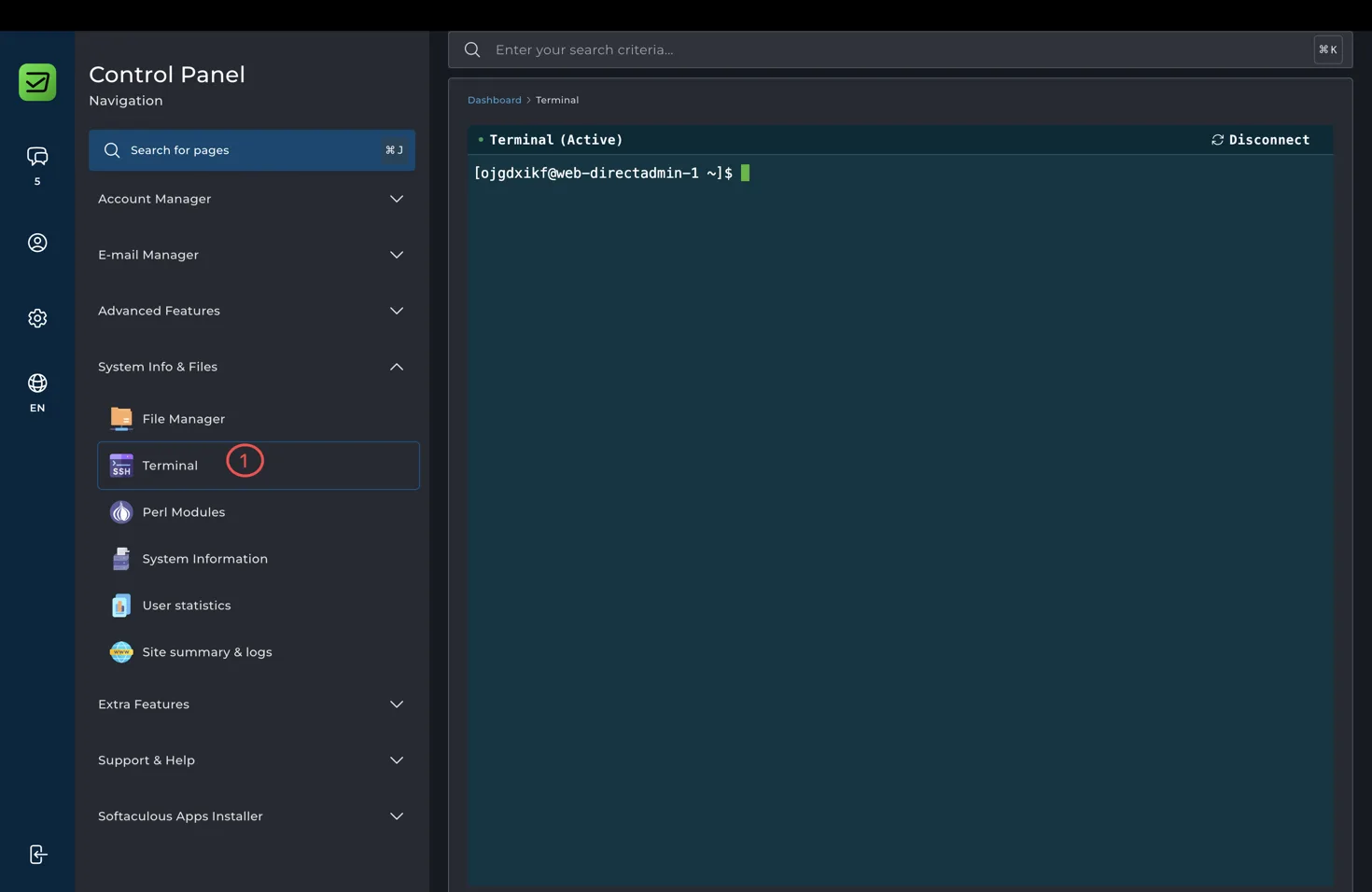
The terminal opens inside your hosting account. It is useful for checking the account username, testing commands, inspecting files, and confirming that your deployment environment is working.
Open SSH Keys
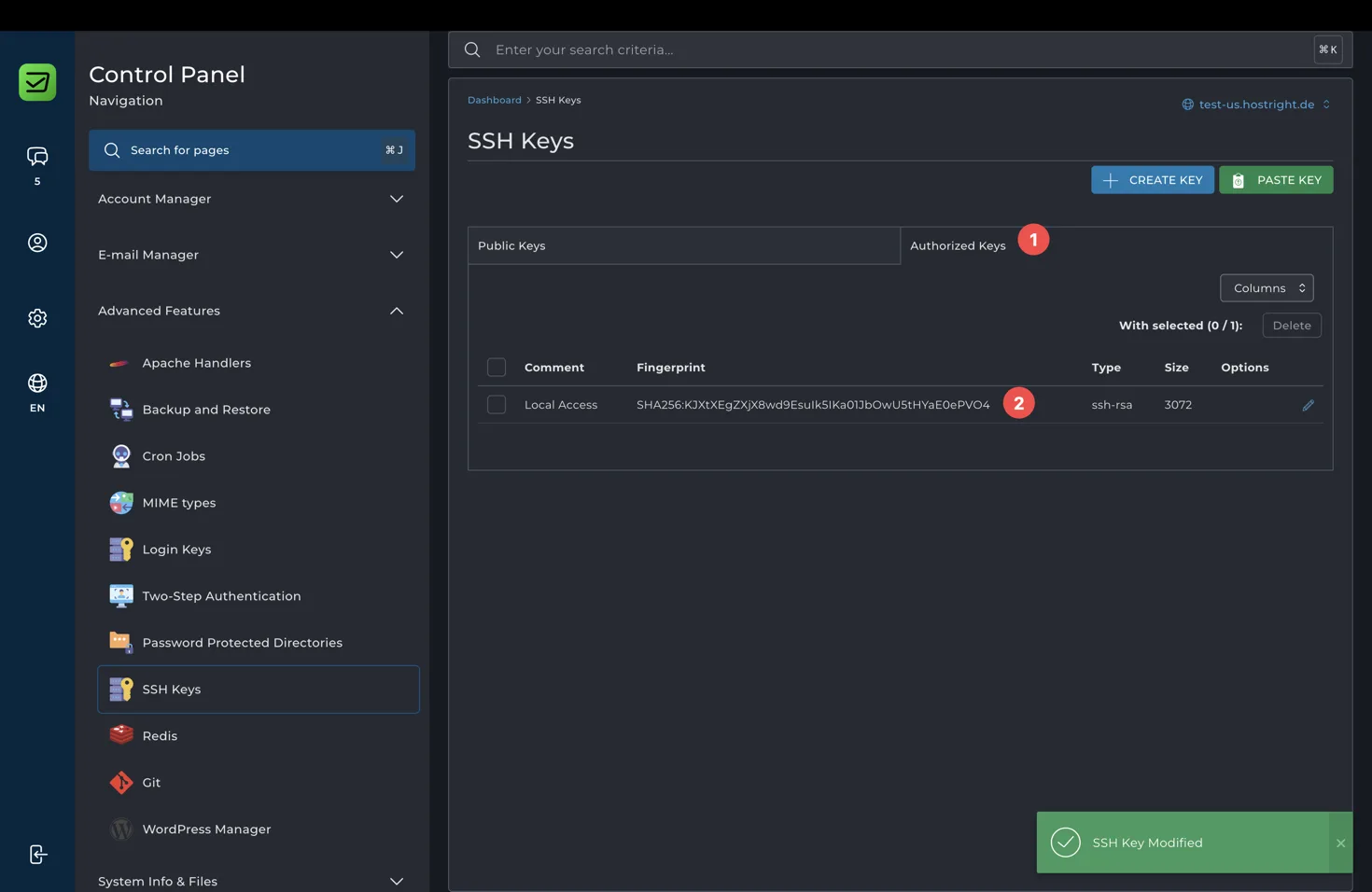
To configure key-based access, expand Advanced Features and select SSH Keys.
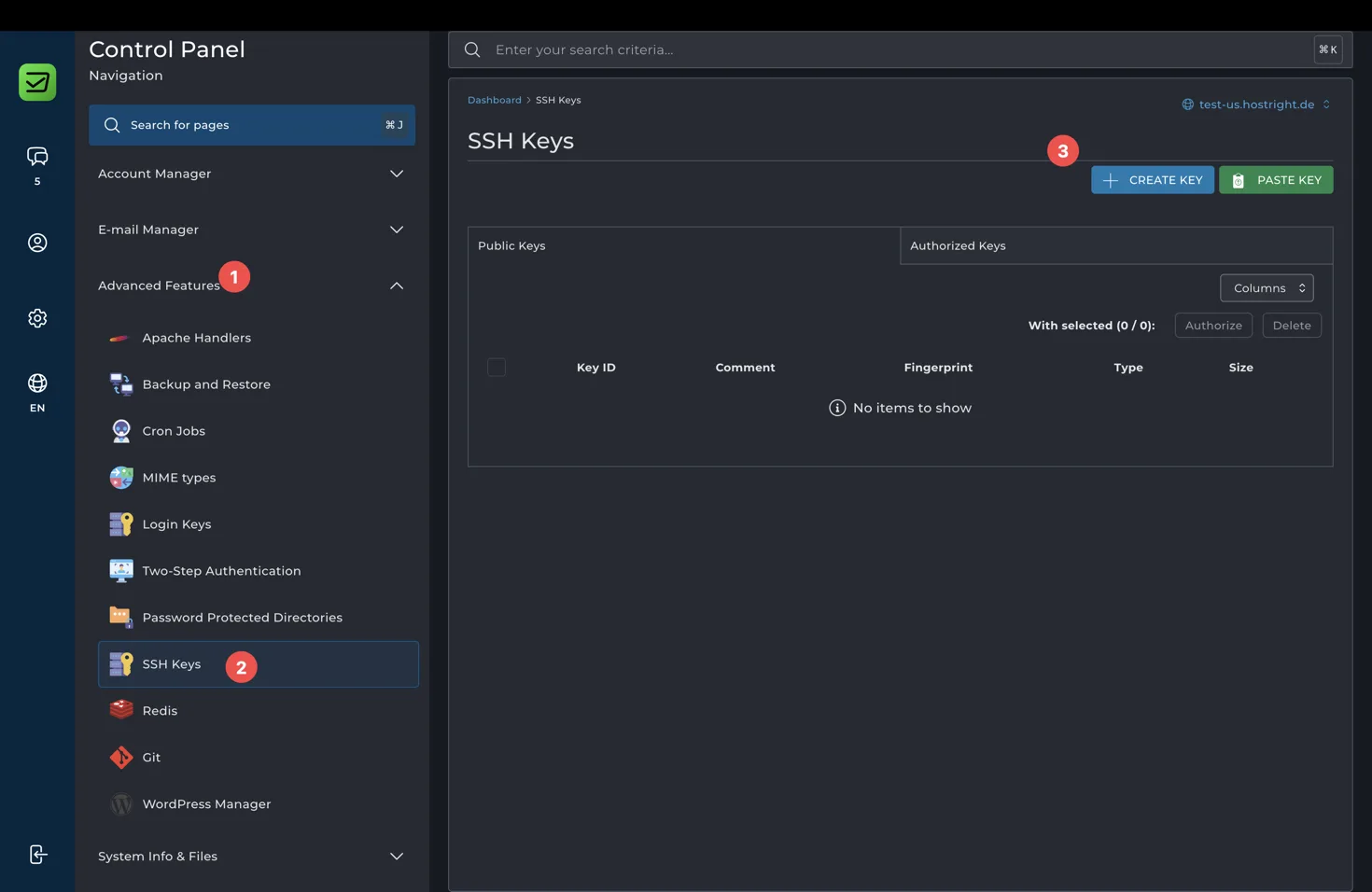
The SSH Keys page has controls for creating a new key and pasting an existing public key. You can use either option.
Add an SSH key
Create a key in the Control Panel
Select Create Key. Enter a descriptive key ID and comment, choose the key size, and set a key password if the form requires one.
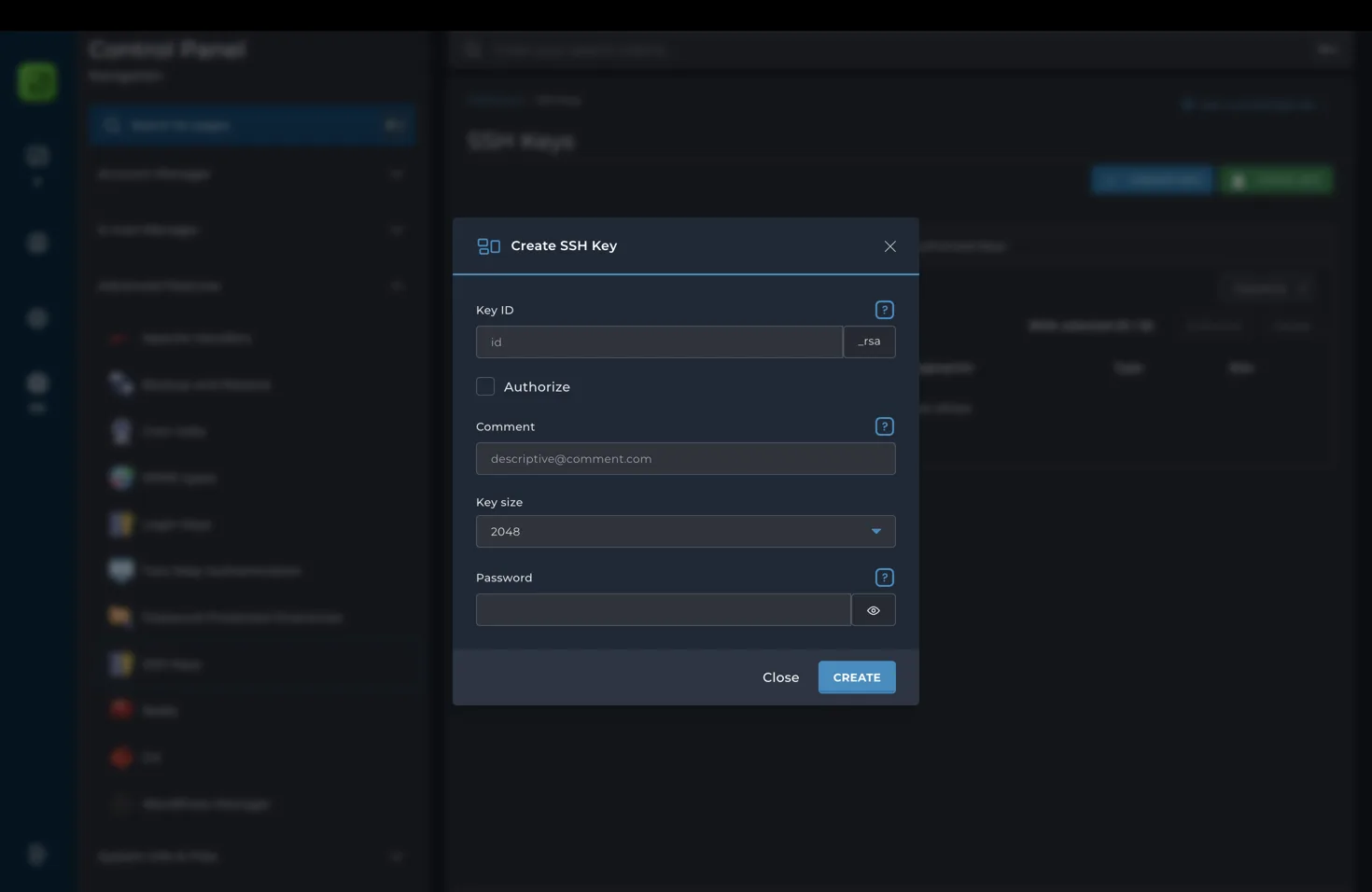
Use a comment that identifies the computer or deployment system, such as laptop-2026 or deploy-server. Keep the private key private. Never put it in public_html, commit it to a repository, or send it through an unencrypted message.
Paste an existing public key
If you already have a key pair on your computer, select Paste Key and enter only the public key line.
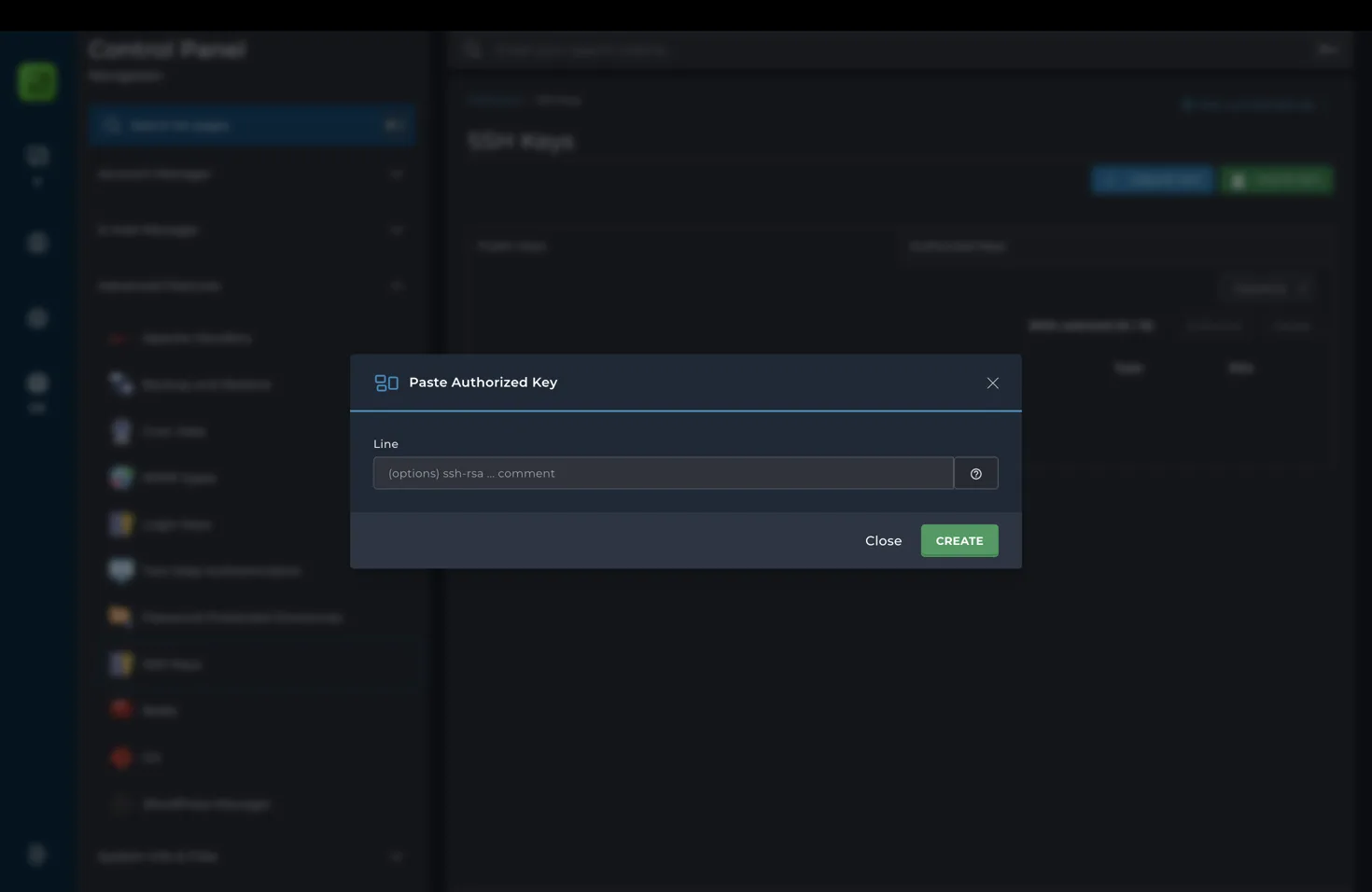
The public key normally starts with a key type such as ssh-ed25519 or ssh-rsa and may end with a comment. The private key stays on your computer. Do not paste the private key into the Control Panel.
After adding the key, authorize it if the Control Panel shows it under Public Keys but not under Authorized Keys. A key must be authorized before it can be used for SSH or SFTP login.
Find your hosting username
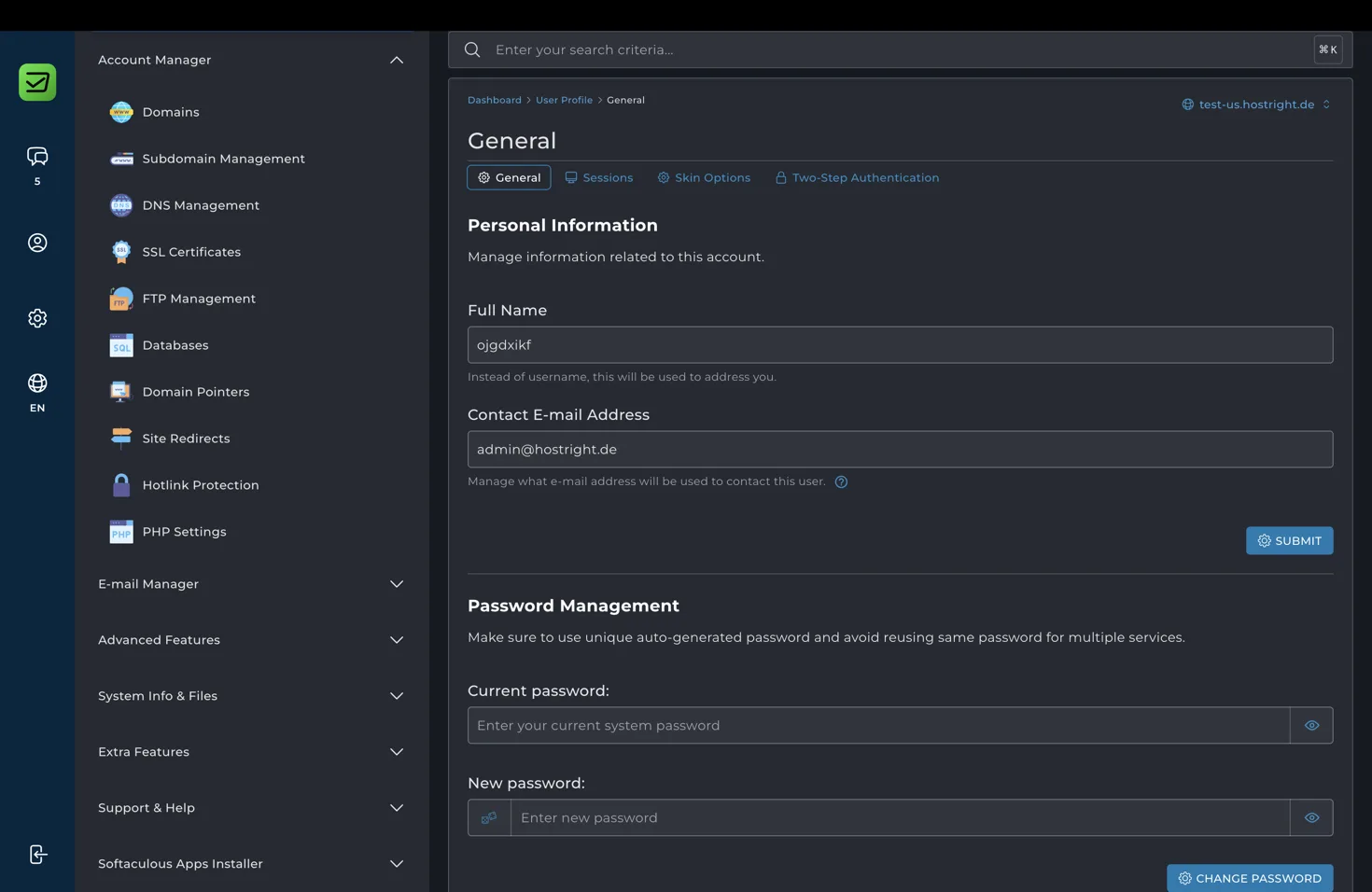
Open the General account profile page and note the account username. This is the username used in the SSH command.
You also need the hostname for the hosting service. Use the hostname shown for your service or the server hostname provided in your HostRight account. A domain name can be used after its DNS records point to the hosting service.
Connect over SSH
On your computer, open a terminal and run the following command. Replace the placeholders with your private key path, hosting username, and server hostname.
ssh -i ~/.ssh/id_ed25519 USERNAME@SERVER_HOSTNAME
For example:
ssh -i ~/.ssh/id_ed25519 accountuser@test-us.hostright.de
If your private key has restrictive permissions, set them before connecting:
chmod 600 ~/.ssh/id_ed25519
The first connection may ask you to confirm the server fingerprint. Review the fingerprint when possible, then confirm only if it matches the expected server. If your key has a passphrase, enter it when your SSH client asks.

After login, confirm that the prompt shows your hosting username and that you are inside the hosting account. You can run commands such as pwd, ls, and deployment scripts from this chrooted session.
Troubleshooting SSH access
If the connection is refused, check the server hostname and confirm that SSH access is enabled for the account. If authentication fails, check that the public key is authorized, that you are using the matching private key, and that the username is correct.
If SSH reports that the private key permissions are too open, run chmod 600 on the key file. If the key is encrypted, make sure you are entering the correct passphrase. Never solve an authentication problem by disabling host key checking or exposing the private key.
Security recommendations
Use a separate key for each computer, deployment system, or team member. Remove an authorized key when it is no longer needed, and use a key comment that makes old keys easy to identify. SFTP uses the same SSH setup, so once this page is complete you can use the same key for SFTP deployment.